

Service Principal TypesAzure Databricks supports two types of service principals:
- Azure Databricks managed service principals: Created and managed directly within Databricks. Can create PATs through the Databricks UI.
- Microsoft Entra ID managed service principals: Created in Microsoft Entra ID, then imported into Databricks. Accessed via Azure API.
Prerequisites
- You have Azure admin access to create app registrations in Microsoft Entra ID.
- You have Azure Databricks workspace admin access to manage service principals and token permissions.
- You know your workspace URL (for example,
https://adb-<workspace-id>.<region>.azuredatabricks.net).
Step 0: choose your service principal type
- Microsoft Entra ID managed (recommended)
- Databricks managed (Databricks-only)
Option A: Microsoft Entra ID managed service principal (for cross-Azure authentication)
If you need to authenticate with both Azure Databricks and other Azure resources, create a Microsoft Entra ID service principal. If you already have one with the Application (client) ID, Directory (tenant) ID, and client secret, you can skip to Step 2A.Step 1A: create the app registration in Microsoft Entra ID
- Sign in to the Azure portal.
- Navigate to Microsoft Entra ID → App registrations → New registration.
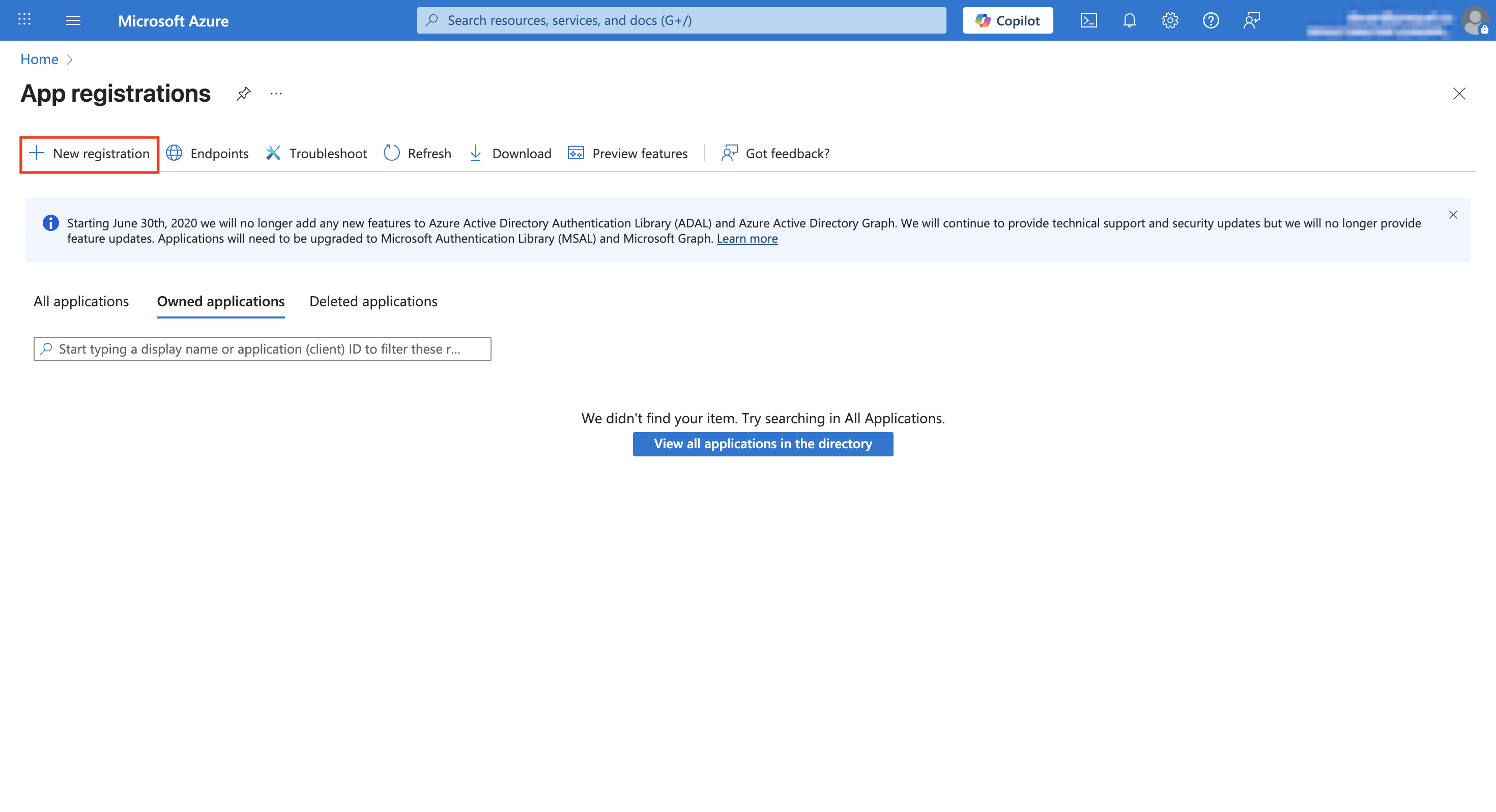
- Enter a Name (e.g., “Databricks Service Principal”).
- Under Supported account types, select Accounts in this organizational directory only (Single tenant).
- Click Register.
- On the Overview page, copy and save:
- Application (client) ID
- Directory (tenant) ID
Create a client secret
- In the app registration, go to Certificates & secrets → Client secrets → New client secret.
- Enter a Description and select an Expires duration (e.g., 12 months).
- Click Add.
- Important: Copy and securely store the Value. This is your client secret and will not be shown again.
Step 2A: add Entra ID service principal to Databricks
Import the service principal
- In your Databricks workspace, click your username → Settings.
- Go to Identity and access → Service principals → Add service principal.
- Select Import service principal.
- Paste the Application (client) ID from Step 1.
- Click Add.
Grant workspace entitlements
- Click on the newly created service principal.
- Under Entitlements, enable:
- Workspace access
- Databricks SQL access (if needed for SQL Warehouse access)
- Click Update.
Step 3A: configure token permissions for Entra ID SP
Enable PAT usage for the service principal
- Configure token permissions via API using an existing admin PAT:
Configure token permissions
<application-id> with your service principal’s Application (client) ID from Step 1.Note: PAT workspace settingIf PAT authentication is disabled at the workspace level, users and service principals cannot create or use PATs until re-enabled. (Microsoft Learn)
Step 4A: generate Microsoft Entra ID access token
Use the service principal credentials to request an Entra ID token:Generate Entra ID token
<tenant-id>with the Directory (tenant) ID from Step 1<application-id>with the Application (client) ID from Step 1<client-secret>with the client secret Value from Step 1
2ff814a6-3304-4ab8-85cb-cd0e6f879c1d/.default scope identifies Azure Databricks and is not workspace-specific. Do not change it. (Microsoft Learn)Token lifetimeEntra tokens are short-lived (~1 hour). Use immediately to create the PAT, or automate with CLI/SDK tools. (Microsoft Learn)
Step 5A: create PAT for Entra ID SP via API
Microsoft Entra ID service principals can only create PATs through API calls, not through the Databricks UI. This is because they are API-only identities that cannot log into the workspace interface. (Microsoft Learn)Call the Databricks Tokens API using the workspace URL and Entra access token from Step 4:Create PAT
token_value that starts with dapi.... Copy and store it securely; you will not see it again. (Databricks Documentation)Alternative: Databricks CLI approachYou can also create the PAT with the Databricks CLI (
databricks tokens create) after authenticating the service principal via OAuth M2M or Entra SP auth. (Microsoft Learn)Step 6: use the PAT in your integration
Use this token value in your Databricks connection configuration (Personal access token).Rotation procedure
- Create a new PAT for the service principal (repeat Steps 4-5).
- Update your integration’s Databricks configuration with the new PAT.
- Revoke the old PAT using the UI or API:
Revoke PAT
Troubleshooting
403 / not authorized when creating PAT
PATs may be disabled for the workspace, or the service principal/group lacks CAN USE permission. Check Admin Settings → Access control → Personal access tokens. (Microsoft Learn)Invalid scope when requesting Entra token
Use the exact scope2ff814a6-3304-4ab8-85cb-cd0e6f879c1d/.default. (Microsoft Learn)