

Routing sensitive traces to SlackOnly the Create a Slack app in your Slack account section applies to sensitive trace webhooks. For the rest, follow the Slack example in the sensitive trace webhook guide.
Create a Slack app in your Slack account
- Create a new channel or find a channel where you’d like to deliver Prequel webhook events.
- Navigate to the Create App flow in your browser and click “From scratch”.
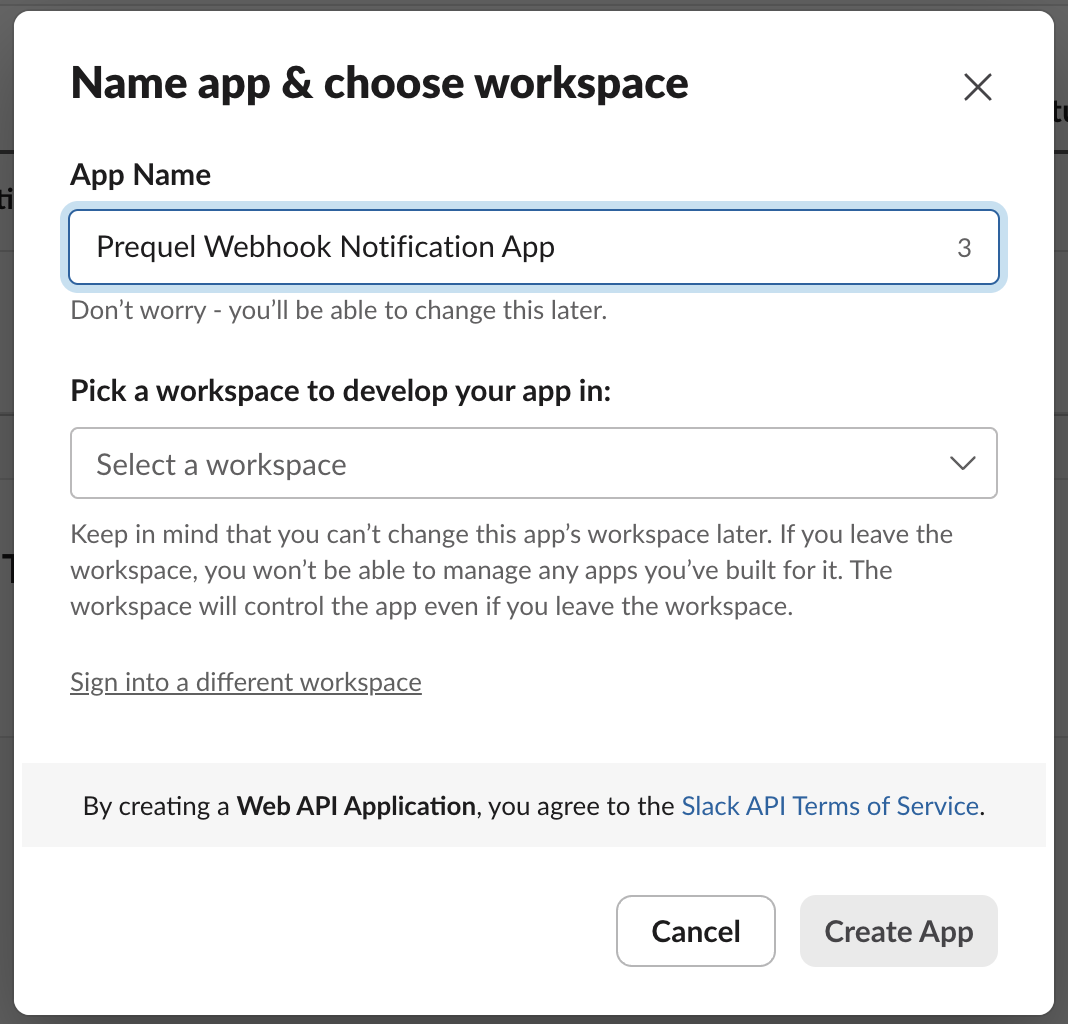
- Create a name, for example “Prequel Webhook Notification App”, and pick your workspace where you’d like to send the events. Click “Create App”.
- In the Features and functionality section, select Incoming webhooks. Turn “Activate Incoming Webhooks” to the “On” position. At the bottom of the menu, under “Generate a Webhook URL for your Workspace”, click “Add New Webhook to Workspace”. In the following prompt, select the channel where you’d like to receive notifications and click “Allow”.
- Record the generated URL. It should look like
https://hooks.slack.com/services/W098X7YZZ6/A12BC34DEFG/AbCdEfgHIjklM12no3PqrSTU.
Learning about advanced Slack App functionalityFor more information about configuring your Slack App, you can refer to Slack’s documentation: https://api.slack.com/messaging/webhooks
Add your Slack web request URL as your webhook target
- Using your Prequel API key and Webhook URL, subscribe to the events you’d like to post to your selected Slack channel destination. You can find the API documentation here (or
POSTthe request using the interactive request builder): Create webhook
Create webhook request