

Prerequisites
- By default, GCS authentication uses role-based access. You will need our service account name available to grant access. It should look like
some-name@some-project.iam.gserviceaccount.com.
1
Create a service account
- In the GCP console, navigate to the IAM & Admin menu, click into the Service Accounts tab, and click Create service account at the top of the menu.
- In the first step, name the service account that will be used to transfer data into Cloud Storage and click Create and Continue. Click Continue in the following optional step without assigning any roles.
- In the Grant users access to this service account step, within the Service account users role field, enter the provided Service account (see prerequisite) and click Done.
- Once successfully created, search for the created service account in the service accounts list, click the Service account name to view the details, and make a note of the email (note: this is a different email than the service’s service account).
- Grant access using one of the following authentication methods:
- Service account impersonation (recommended)
- HMAC Access Key & Secret
Select the permissions tab, find the provided principal name (Service account from the prerequisite), click the Edit principal button (pencil icon), click Add another role, select the Service Account Token Creator role, and click Save.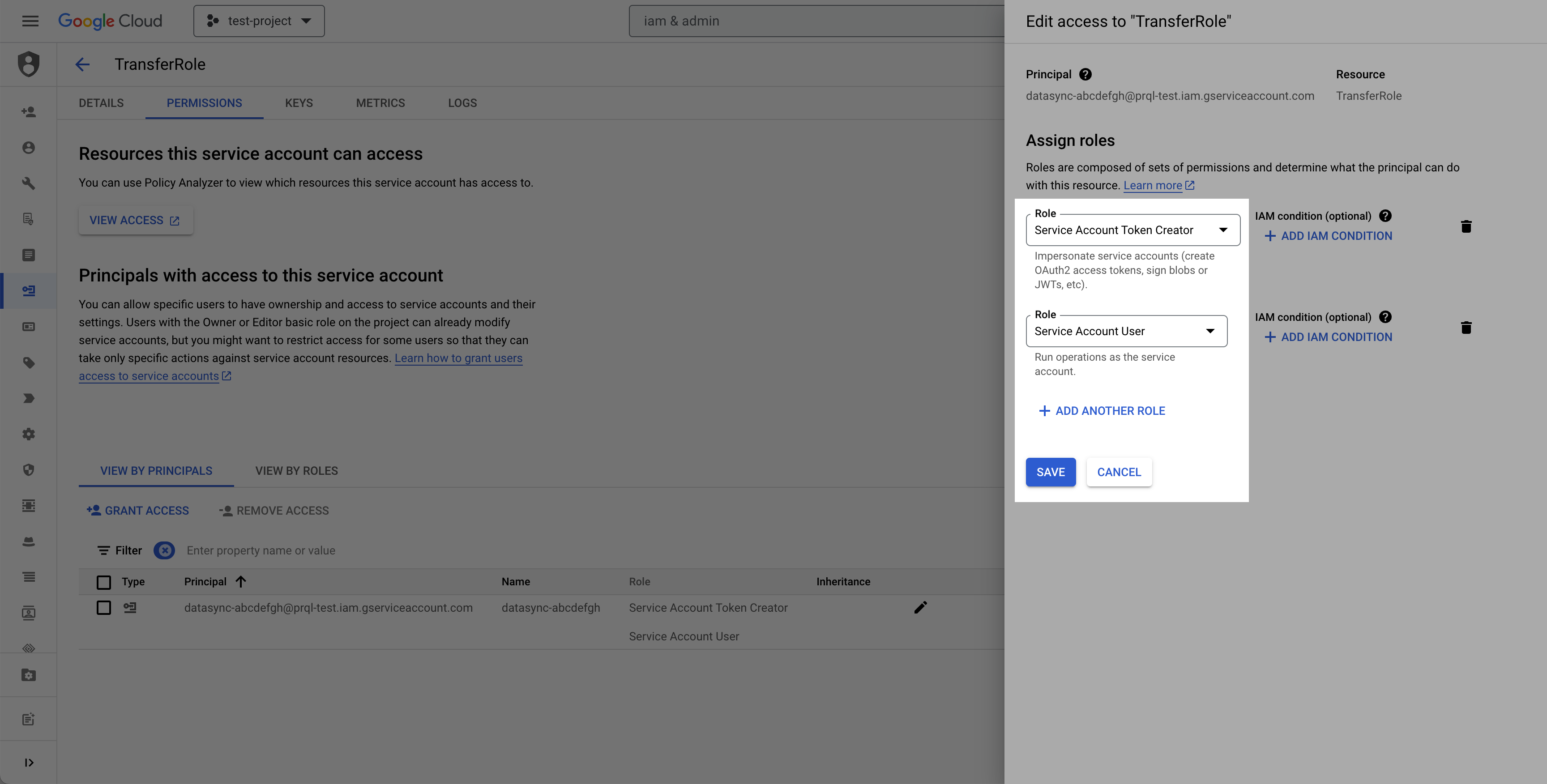


2
Create destination GCS bucket
- Navigate to the Cloud Storage page.
- Click Create.
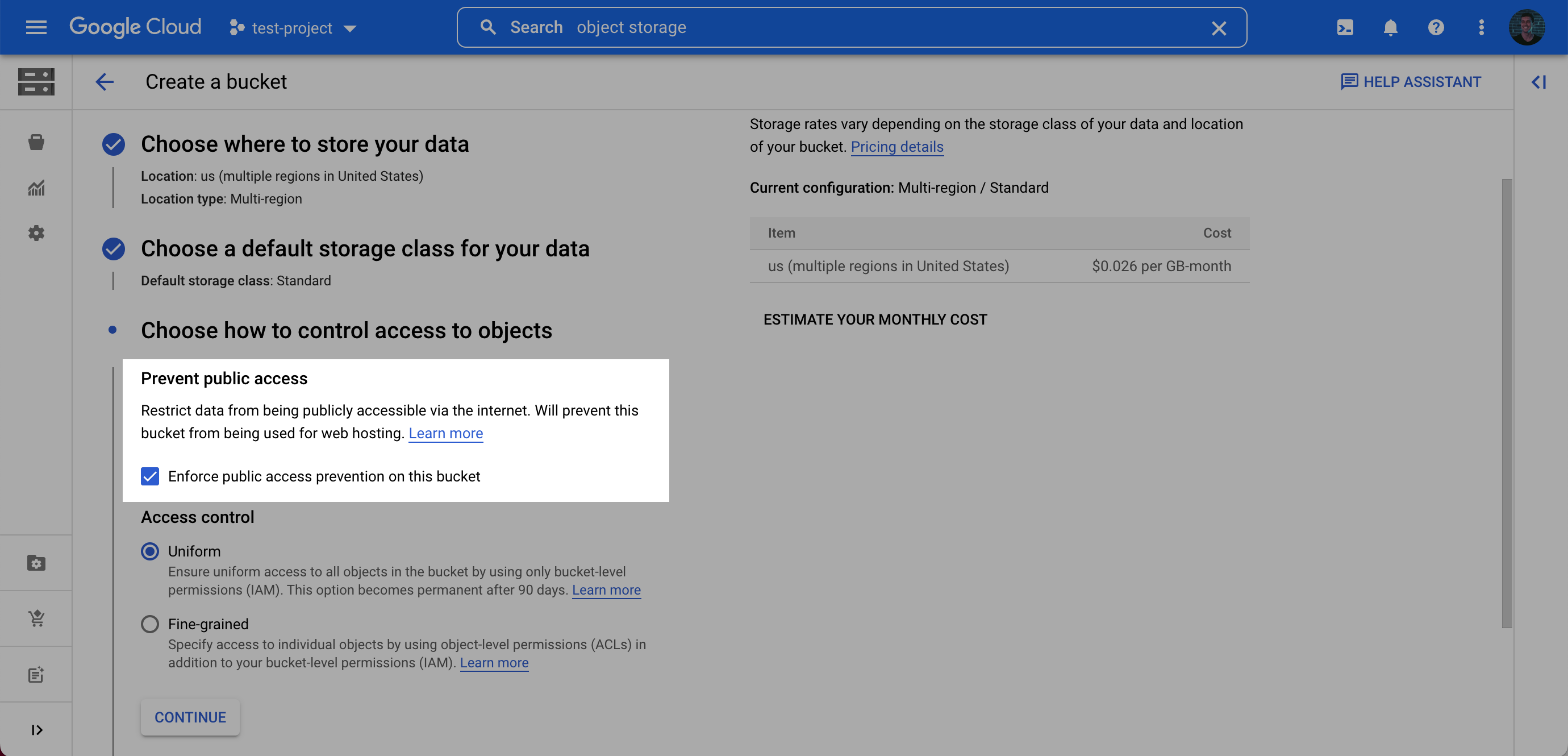
- Enter a bucket name, choose a region. Note: at the Choose how to control access to objects step, we recommend selecting Enforce public access prevention on this bucket.
- After choosing your preferences for the remaining steps, click Create.
Recommendation: dedicated bucket for data transfersUse a unique bucket for these transfers. This:
- Prevents resource contention with other workloads
- Avoids accidental data loss from mixed lifecycle or cleanup rules
- Improves security by reducing surface area and enabling tighter, destination-scoped policies
- On the Bucket details page for the bucket you created, select the Permissions tab, and click Grant access.
-
Grant access to the principal (Service Account) you created in Step 1 (Note: this is the service account you created, not the service account from the prerequisite), and assign the Roles: Storage Object User and Storage Legacy Bucket Reader. Click Save.
Alternatively, assign a custom role containing at minimum:
storage.buckets.getstorage.objects.create,storage.objects.get,storage.objects.list
storage.objects.delete: enables large files to be uploaded in multiple parallel parts, improving transfer performance. Parts are combined using GCS object composition, and temporary part files are deleted once combined so interrupted uploads can be retried. This permission also allows connection tests to automatically clean up temporary files from the bucket. Your data files themselves are never deleted from the bucket.
3
Add your destination
Use the following details to complete the connection setup: bucket name, your chosen folder name for the data, and your Service account email.
Terraform
If your organization manages infrastructure with Terraform, you can use the configuration below instead of the steps above. It sets up the same resources and permissions, using service account impersonation.- Use the official
hashicorp/googleprovider. The project needs the IAM API enabled. - In
terraform.tfvars, setproject_id,location,bucket_name, andvendor_service_account_email(our service account from the prerequisites). The optional inputs and their defaults areservice_account_id(transfer-writer) andforce_destroy(false). - After
terraform apply, use thebucket_nameandservice_account_emailoutputs, plus a folder name of your choice, to complete the connection setup. Print each withterraform output -raw <name>.
Permissions checklist
- Service account has been granted Storage Object User and Storage Legacy Bucket Reader on the bucket, or an equivalent custom role (at minimum
storage.buckets.get,storage.objects.create,storage.objects.get, andstorage.objects.list; optionallystorage.objects.deleteto enable parallel part uploads and connection test cleanup, as described in Step 2) - If using service account impersonation, the token creator role is granted to the impersonating principal
Temporary File Cleanup (Optional)By default, a connection test is performed against the destination during initial configuration. This test writes temporary artifacts under the prefix
_test_connection/ (located at either the bucket root, or inside the custom folder prefix configured on the destination, if present).If you do not grant delete permissions (storage.objects.delete), the connection test will still succeed, but these test files will remain in your bucket. To automatically clean them up and avoid clutter or minor storage charges, you can optionally configure GCS Object Lifecycle Management on your bucket to delete objects matching the _test_connection/ prefix (or <your_folder>/_test_connection/ if a custom folder was configured) after 1 day, or delete them manually.FAQ
How is the GCS connection secured?
How is the GCS connection secured?
Recommended: use a service account with role-based access (no long-lived user credentials). Optionally, HMAC keys can be used when policy requires, but short-lived tokens and least-privilege roles are preferred.
Why is service account impersonation required for IAM authentication?
Why is service account impersonation required for IAM authentication?
You create one service account in your project with storage permissions, and we use our service account to impersonate yours. This means we never handle your private keys, all operations appear in your audit logs, access is via short-lived tokens, and you can revoke access anytime through your own IAM permissions. Direct service account access is not supported.
How is data organized in the bucket?
How is data organized in the bucket?
Data lands in Hive-style partitions per model:
<folder>/<model_name>/dt=<transfer_date>/<file_part>_<transfer_timestamp>.<ext>. To write to the bucket root, enter . as the folder name.What file formats are supported?
What file formats are supported?
Parquet (default/recommended), CSV, and JSON/JSONL.How are large datasets written?
How are large datasets written?
Files are automatically split; multiple files may be written per model per transfer. If
storage.objects.delete has been granted, large files are also uploaded in multiple parallel parts and combined in the bucket. Temporary part files are named after the data file they belong to, with a .part-N suffix appended (for example <file_name>.parquet.part-0), and each contains a raw byte range of that file rather than independently readable data. Part files are visible alongside data files while an upload is in progress and are cleaned up when the upload completes; if a transfer is interrupted, part files may remain in the bucket. Configure any downstream loading to match your chosen file format’s extension (*.parquet, *.csv, *.json, or *.jsonl) so part files are never read as data.How do I know when a transfer completed?
How do I know when a transfer completed?
Each transfer writes a manifest file per model under
_manifests. Files are written per model per transfer in the format: _manifests/<model_name>/dt=<transfer_date>/manifest_{transfer_id}.json.Why do I sometimes see duplicates?
Why do I sometimes see duplicates?
Object storage is append-only. The change detection process uses a lookback window to ensure no data is missed, which can create duplicates. Downstream pipelines should deduplicate on primary keys prioritizing the most recent transfer window; manifest files can help bound the set of files to read.
What if I change the bucket or folder?
What if I change the bucket or folder?
New files are appended to the new location. Existing data remains in the old location.
Are there file size limits?
Are there file size limits?
No explicit size/row limits for GCS; files are split automatically based on volume and performance heuristics.