

Select your onboarding experience
Get started with the Prequel agent skill, the Prequel MCP server, a Postman collection, or curl commands.- Agent skill
- MCP server
- Postman
- curl commands
Skills are an open standard for packaging reusable agent capabilities. Claude Code, Cursor, and other skill-aware agents can all load the Prequel Export skill.
1
Save the skill to your agent's skills directory
Open the raw skill file, copy the contents, and save the file to your agent’s skills directory. For Claude Code use
~/.claude/skills/prequel-export-quickstart/SKILL.md. For Cursor use .cursor/skills/prequel-export-quickstart/SKILL.md in your project root and reload the workspace.2
Prompt your agent
Begin an agentic Prequel Export configuration using this prompt.
Prerequisites
1
Log into the Admin UI
Access the Prequel Admin UI at app.prequel.co, eu-app.prequel.co, or your custom domain. You can log in using Continue with Google if your company uses Google Workspace, or a one-time passcode sent to your email. If you are unable to log in, contact the Prequel team.
2
Access your Prequel API key
You will need a Prequel API key. For a POC, you will use a staging key, which begins with
sk_staging. The key in the X-API-KEY header routes your request to production or staging based on the key. Contact your Prequel representative if you do not have one.Set your API key
3
Confirm your source data requirements
Every source table you want to transfer needs a unique ID column (e.g.
id), a last-modified timestamp column (e.g. updated_at) for change detection, and a way to filter by tenant, either an organization ID column (e.g. organization_id) or a per-tenant schema. See Change detection and Multi-tenancy.4
Allowlist the Prequel static IP
If your source or destination restricts inbound traffic, allowlist the Prequel static IP before connecting. See Prequel IP addresses.
5
Verify Prequel API access
Confirm your key works against the API. A 200 response means your environment is ready. Select the tab that matches your deployment: US, EU, or a dedicated or self-hosted deployment on your own host.
- US
- EU
- Dedicated or self-hosted
Verify API access
Use the Staging environmentFor initial onboarding, use the toggle in the bottom-left corner of the Admin UI to switch to the Staging environment. Your staging API key only creates and updates resources within the staging environment.When you are ready to begin work in your production environment, contact the Prequel team to receive a Production API key and flip to the Production environment in the Admin UI.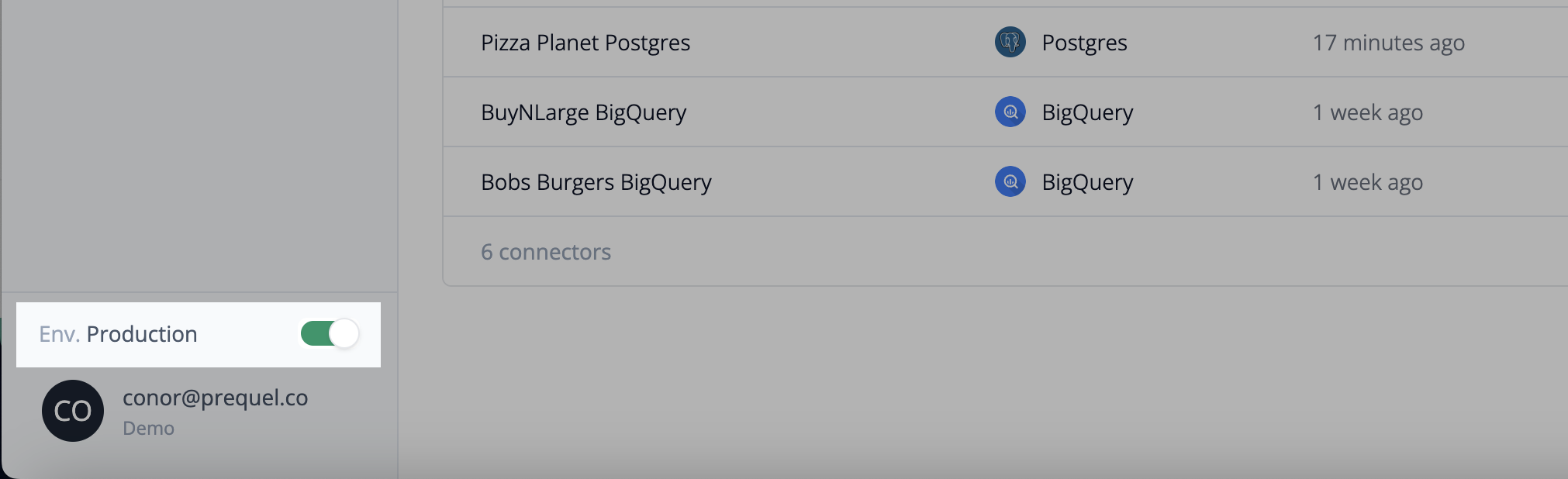
Setup overview
A Prequel Export pipeline is built in five steps:- Connect a source so Prequel can read from your database, warehouse, or object store.
- Configure your data model to declare which tables and columns are shared and how changes are detected.
- Add a recipient to represent the customer you are sharing data with.
- Add a destination that the recipient receives data into.
- Trigger a transfer and verify data lands in the destination.
Set up your pipeline
1
Connect a source
A source is the database, warehouse, or object store Prequel reads from. Create a new user or role in your source, granted read-only permissions on only the datasets you intend to export, to adhere to the principle of least privilege. Then use the per-vendor fields from the source configuration guides to add it. See Sources.
- Admin UI
- API
Open Sources → Add source, choose your vendor, enter the connection details, and run the built-in connection test before saving.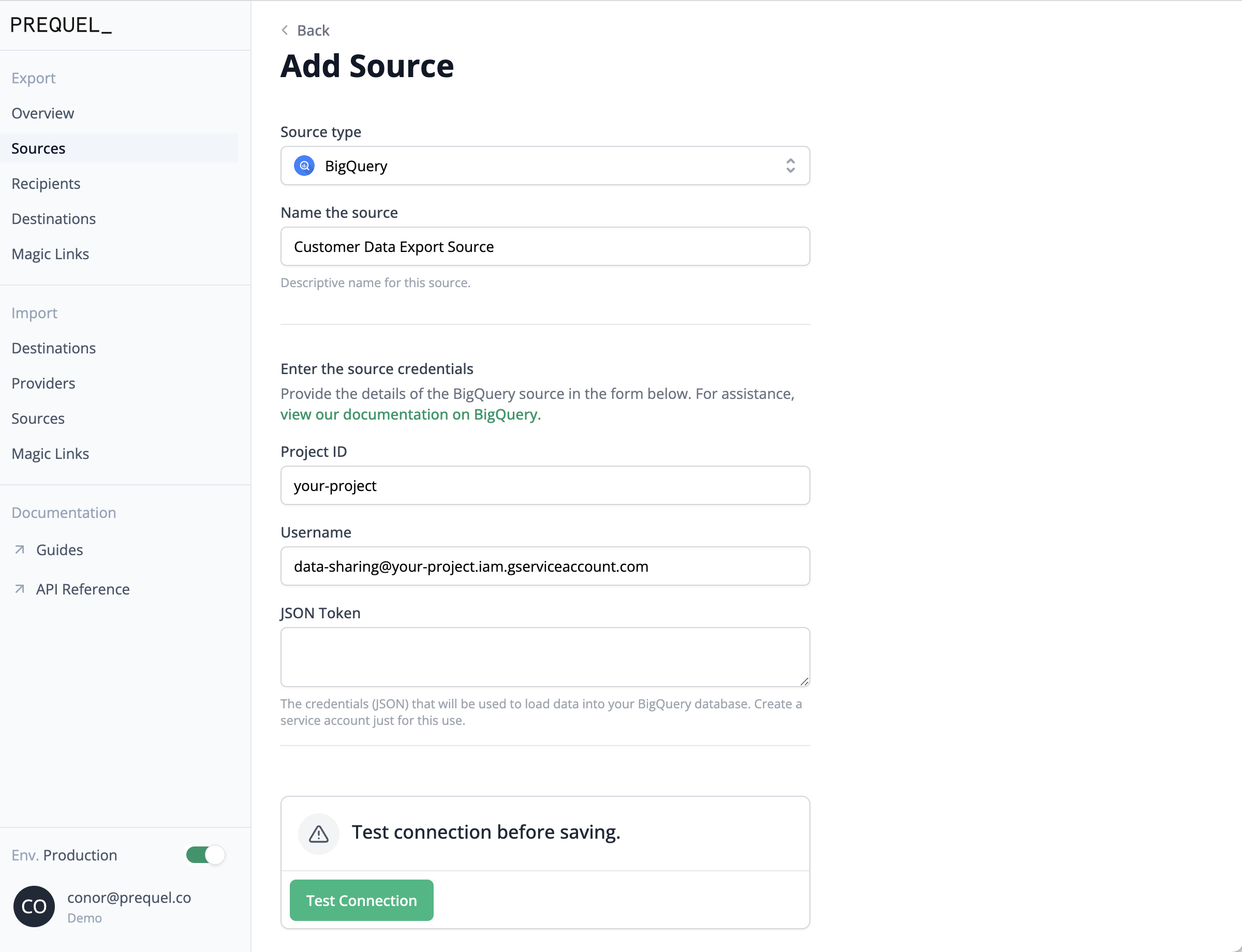
2
Configure your data model
A model declares which source table is shared, which columns map to the destination, how rows are filtered per tenant, and how changes are detected. Models are defined as config files: store them in a Git repository and publish them with the GitHub Action, or post them to the API directly. See Models. Posting a model validates it against the source unless
skip_model_validation is set.Is your source schema-tenanted?Prequel environments are set to multi-tenant mode by default. If your source uses one schema per customer with identical tables across schemas (schema-tenanted), contact the Prequel team to switch your environment to schema-tenanted mode. See Tenancy options to understand the difference between these models and confirm which is right for your environment.
- US
- EU
- Dedicated or self-hosted
Create model
3
Add a recipient
A recipient represents one of your customers. The
id_in_provider_system is the tenant identifier Prequel matches against each model’s organization_column to filter rows for that customer. In schema-tenanted mode, it is instead the tenant’s exact schema name in the source. See Recipients.- Admin UI
- API
Open Recipients → Add recipient, give them a name and their tenant identifier (
id_in_provider_system), and choose which products they receive (or all of them).4
Add a destination
A destination is where a recipient receives their data. Use the per-vendor fields from the destination configuration guides and attach it to the recipient via the Create destination endpoint. See Destinations.
- Admin UI
- API
Open Destinations → Add destination, select the recipient and vendor, and enter the connection details. You can open the destination’s configuration documentation from the Documentation button in the top-right corner of the form. You can also collect destination credentials from your customer with a magic link.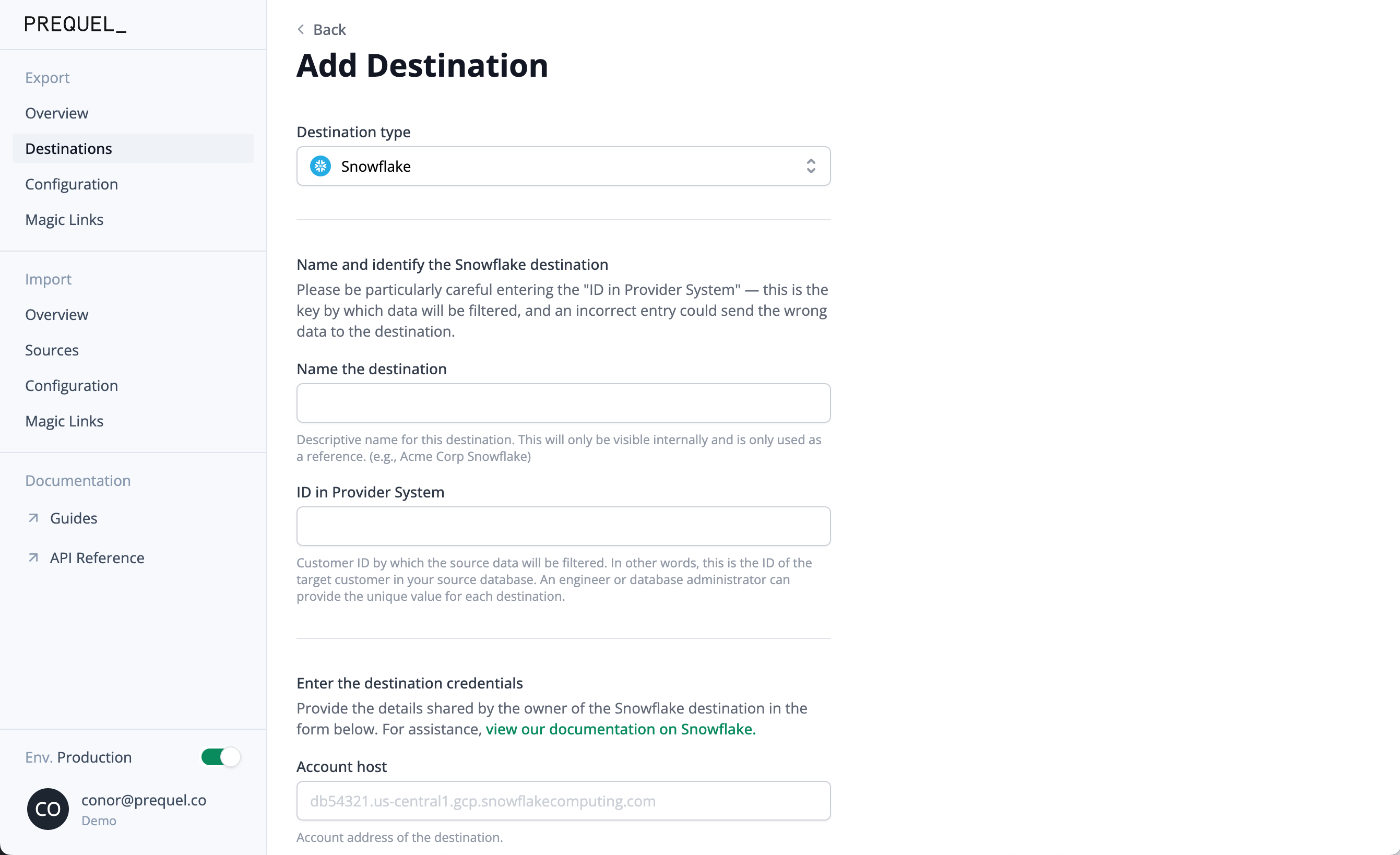
5
Trigger a transfer
With a source, model, recipient, and destination in place, start a transfer. The first transfer runs a full refresh; subsequent transfers sync only changed rows.
- Admin UI
- API
Open the destination and click Sync now to kick off a transfer.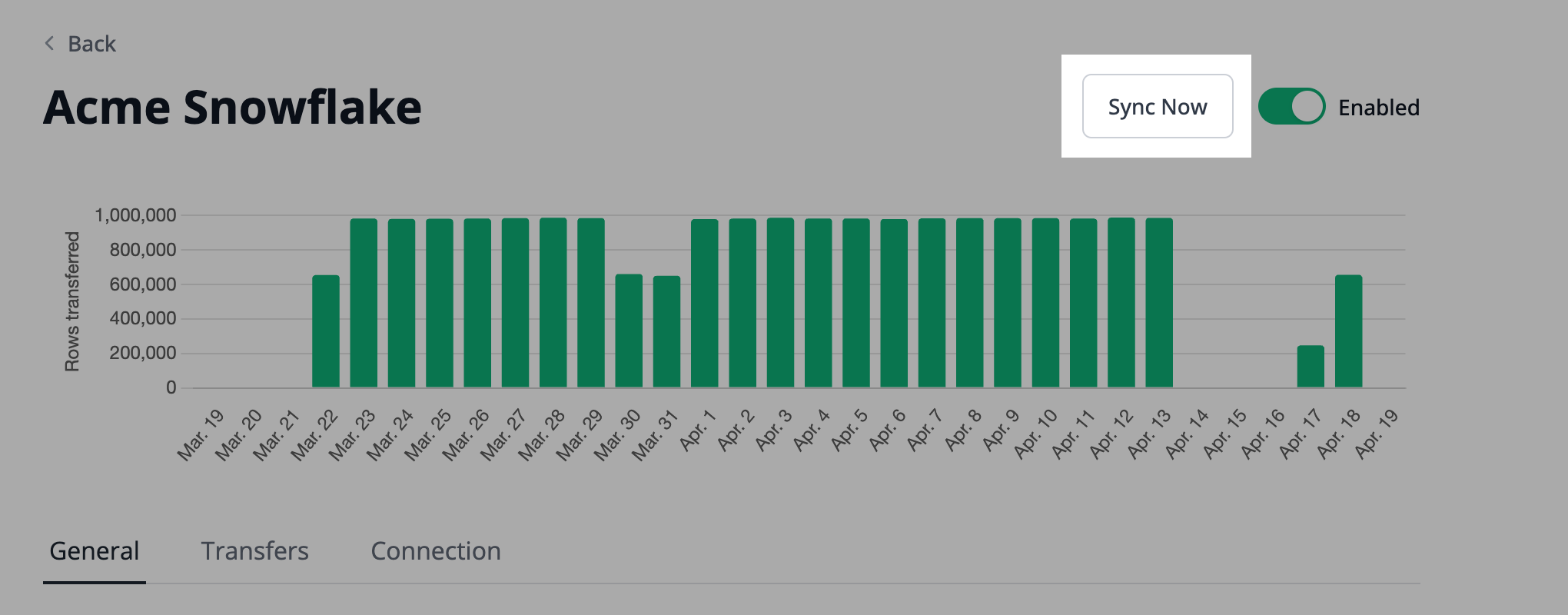
That’s it.Query the destination to confirm data arrived. The
_transfer_status table records the outcome of each model’s transfer.Explore integrating with your product
When you are ready to move beyond manual setup, Prequel can be embedded into your product for a self-serve, monitored integration:React SDK
Embed destination setup and transfer monitoring directly in your product UI.
GitHub Action
Publish and validate model changes from CI instead of by hand.
Webhooks and monitoring
Get notified on transfer success and failure via webhooks, Datadog, or Slack.
Error handling
Understand error codes and surface actionable failures to your customers.
Next steps
Schema evolution
Roll out column and type changes to destinations safely.
Orchestration
Tune how often each destination transfers.
Data integrity checks
Verify source and destination row counts match.
Tenancy options
Choose how tenant data is modeled and filtered per recipient.