Prerequisites
- A public SSH key to add to the bastion machine to authenticate the SSH connection. Ask your contact at our service if they have not already provided one to you.
1
Provision a bastion server
If using SSH tunneling to connect to a destination database, we recommend using a standalone bastion server. This step will walk through provisioning the standalone bastion server. If using an existing server, skip to step 2.


- Navigate to the EC2 Instances page, and click Launch instances.
- Select an image. We recommend a default Amazon Linux image, such as the 64-bit (x86) Amazon Linux 2 AMI (the default option).
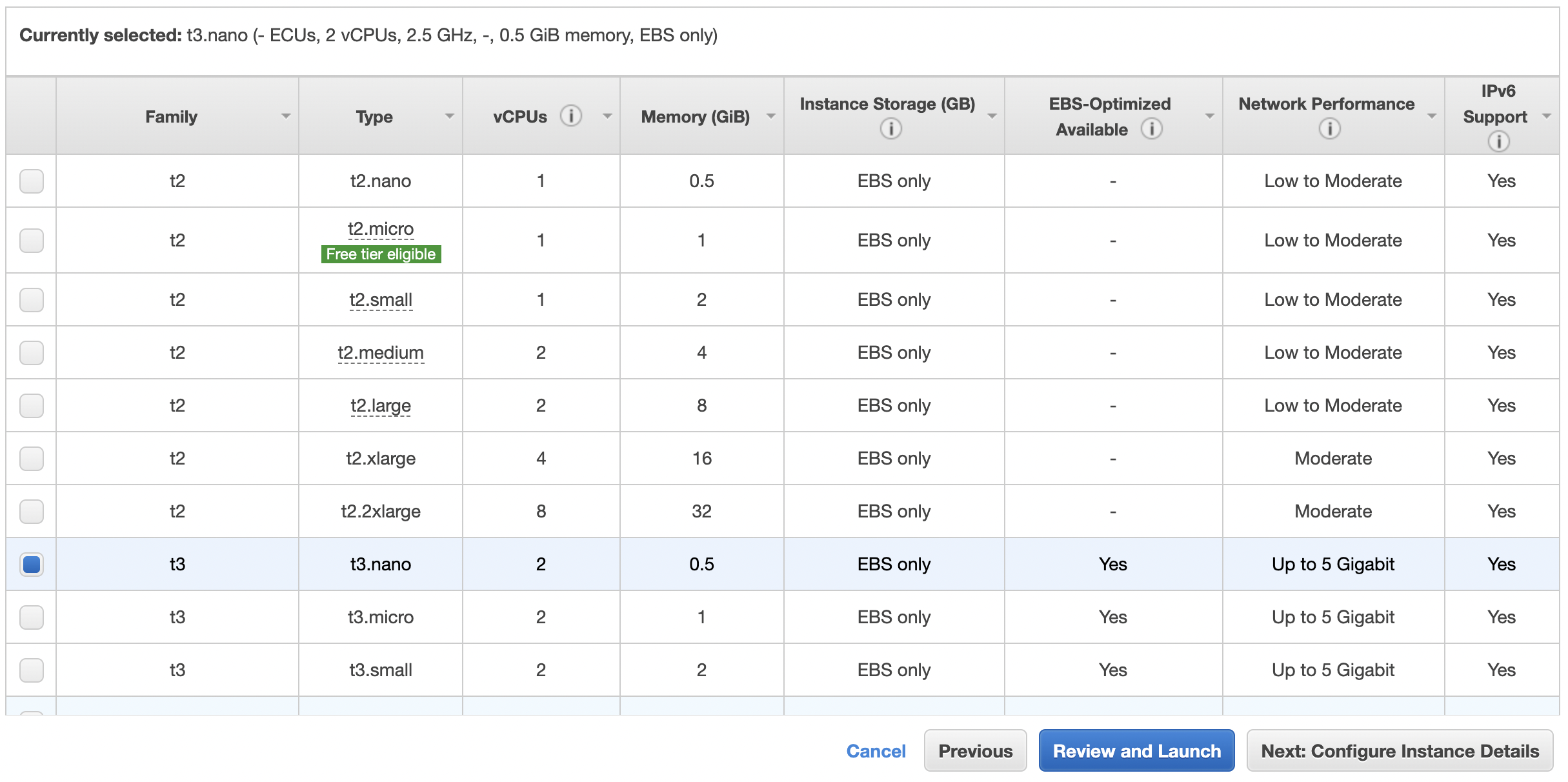
- Select a type. We recommend the t3.nano. Because this bastion server will be used exclusively for SSH tunneling, Network Performance is the primary consideration. The t3.nano default configuration comes with Network Performance of up to 5 Gigabit, as well as minimal Memory (1 GiB), vCPUs (2) and Storage (8 GB SSD) for about $5/mo depending on region and market rates.
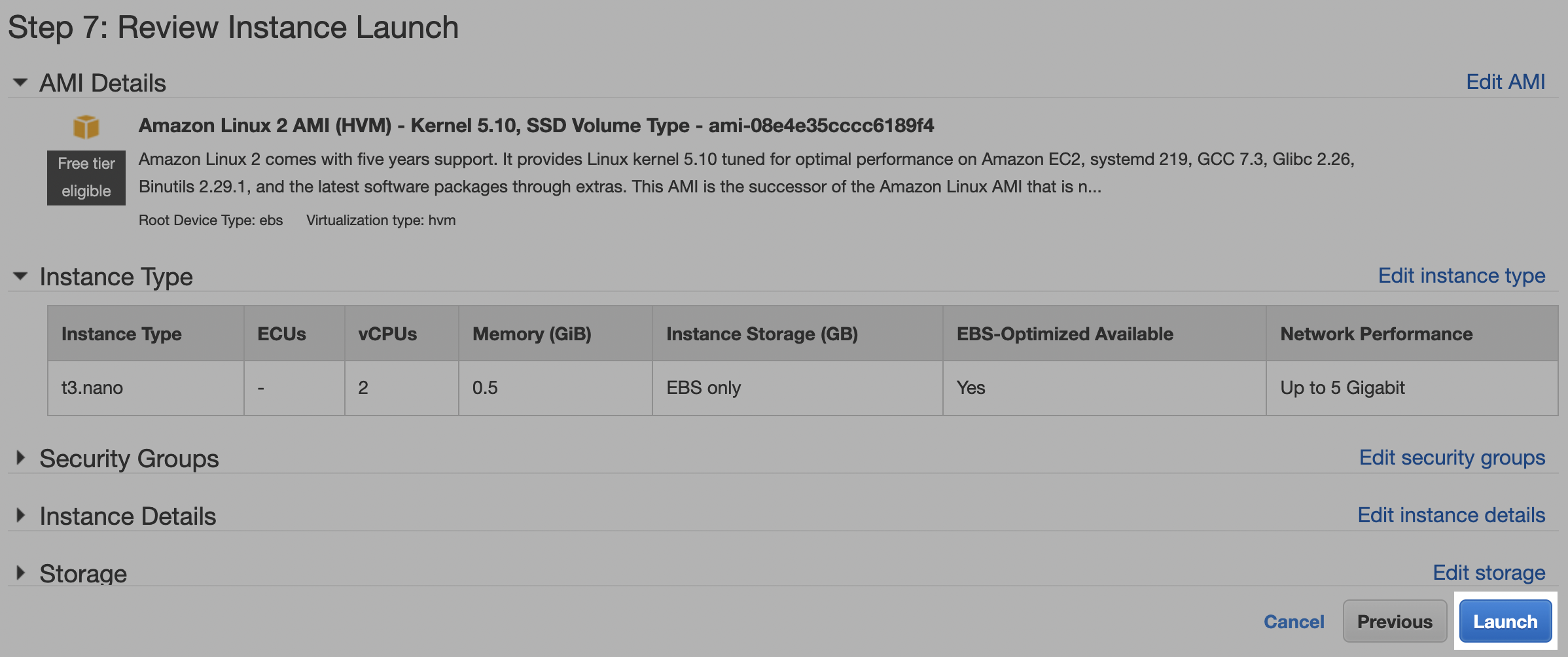
- Click Review and launch. Consider modifying the default security group according to your security policies to enable configuration (e.g., creating the SSH user in Step 2). Click Launch. We will further modify the default security group in Step 2. (The remaining default options are sufficient.)
2
Configure the server
Allow SSH port access
In the AWS console, complete the steps below- Navigate to the EC2 Instances page, and click the instance ID of the server to be used as the bastion host.

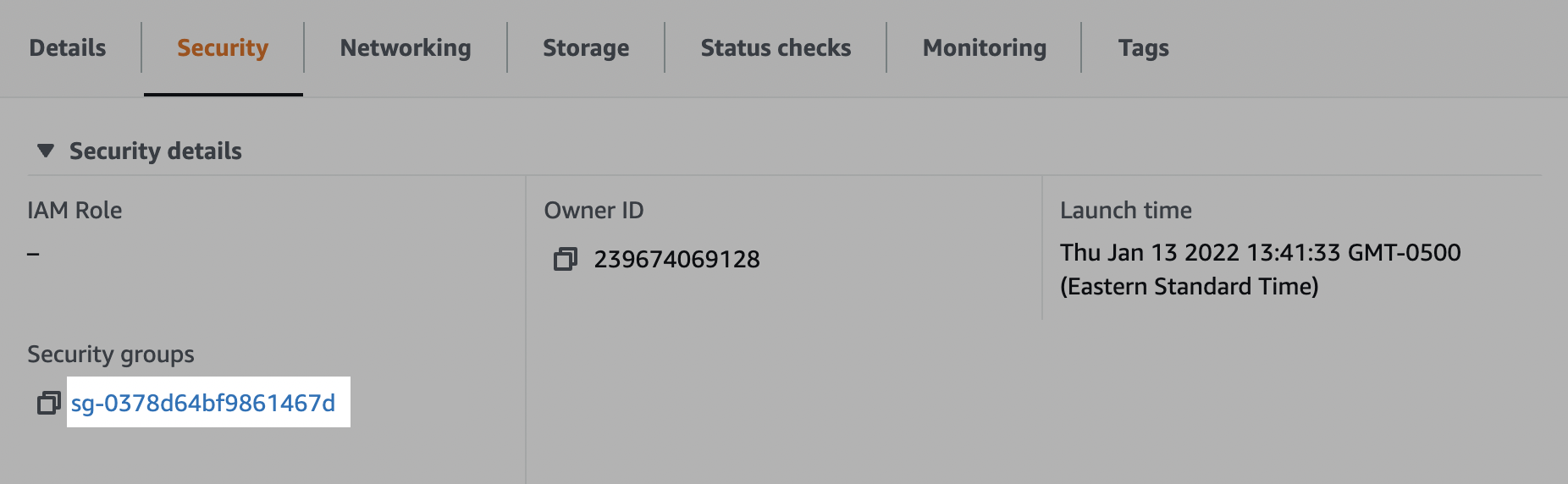
- In the Security tab, click the link to one of the security groups. (E.g., the default security group). Make note of this security group, as you will need to allow inbound access to your destination DB as part of Step 3.
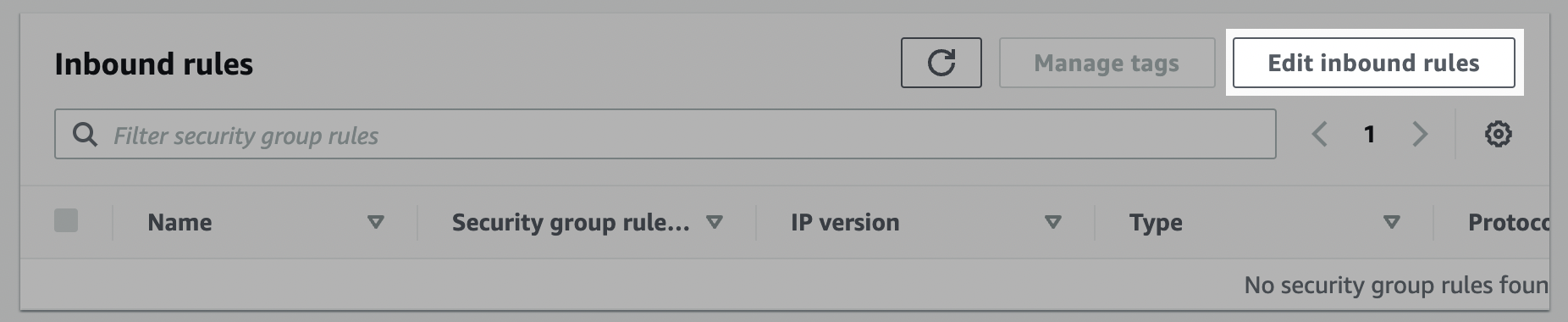
- In the Inbound rules tab, click “Edit inbound rules”.
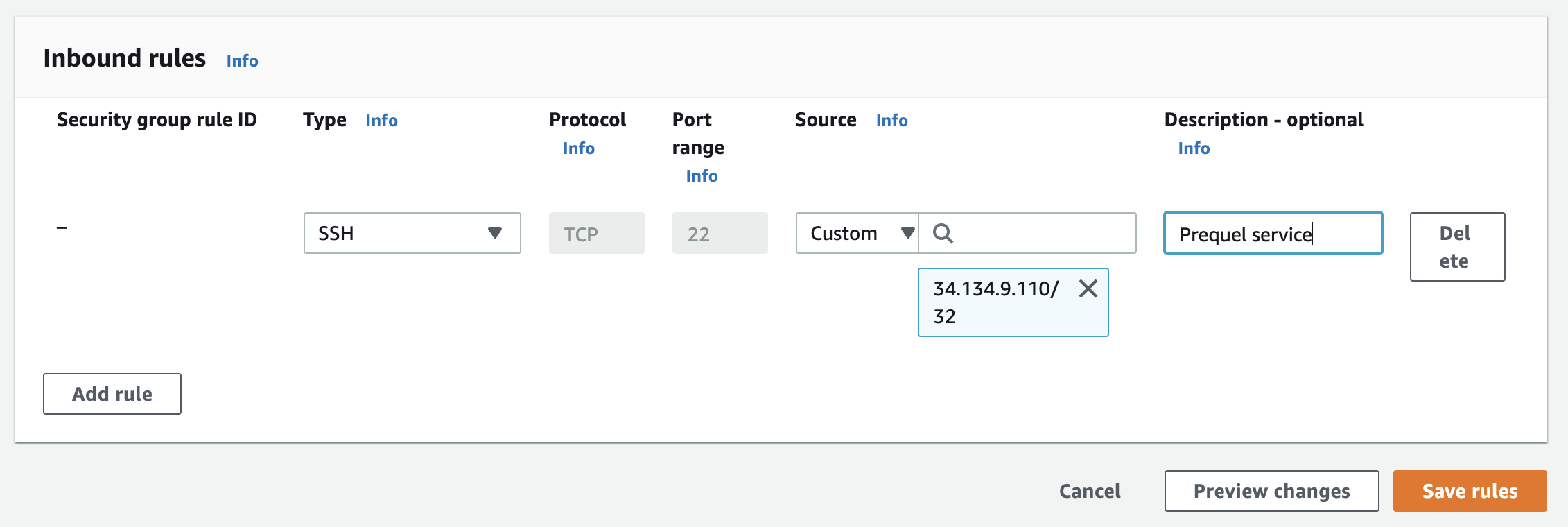
- Click Add rule. Add an inbound rule of type SSH and whitelist our static IP. Optionally, add a description. For the correct IP, refer to the IPs section of the docs. _ Note: you will not be able to SSH into this machine to configure the SSH user unless you also whitelist your machine’s IP in the inbound rules. Consider temporarily adding that IP to facilitate the next step._
Create the SSH user
Login to the bastion server and complete the steps below.- Create group
<ssh_group>:
Create group
- Create user
<ssh_user>:
Create user
- Switch to the SSH user:
Switch to SSH user
- Create the
.sshdirectory:
Create .ssh directory
- Set permissions:
Set directory permissions
- Navigate to the
.sshdirectory:
Navigate to .ssh directory
- Create the
authorized_keysfile:
Create authorized_keys file
- Set permissions:
Set file permissions
- Add the public key to the
authorized_keysfile. The key, including the “ssh-key” and comment, should be all on one line in the file, without linebreaks.
Add public key
3
Grant DB access to the bastion server
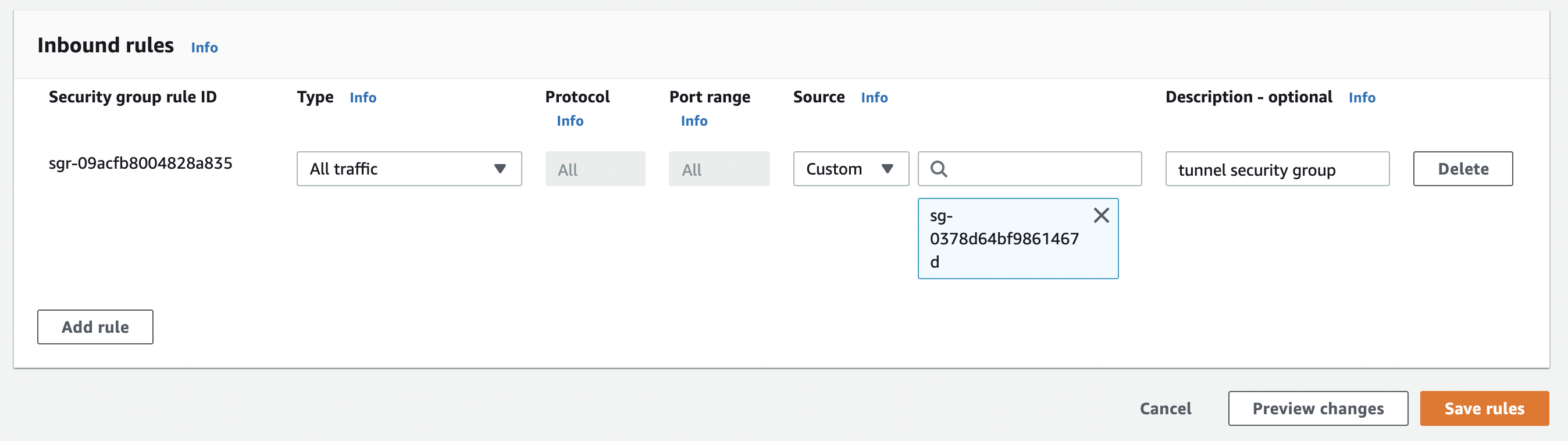
- Within the Inbound rules of the database security group, click Add rule. Add the security group noted in Step 2, and click Save rules.