

The recommended authentication method, service account impersonation, is covered in Step 3. If your policy requires a different approach, that step also describes how to use a service account key.
Step 1: create a service account
1
Open the Service Accounts menu
In the GCP console, in the same project as your BigQuery data, navigate to the IAM & Admin menu, open the Service Accounts tab, and click Create service account.
2
Name the service account
Give the service account a descriptive name and click Create and Continue.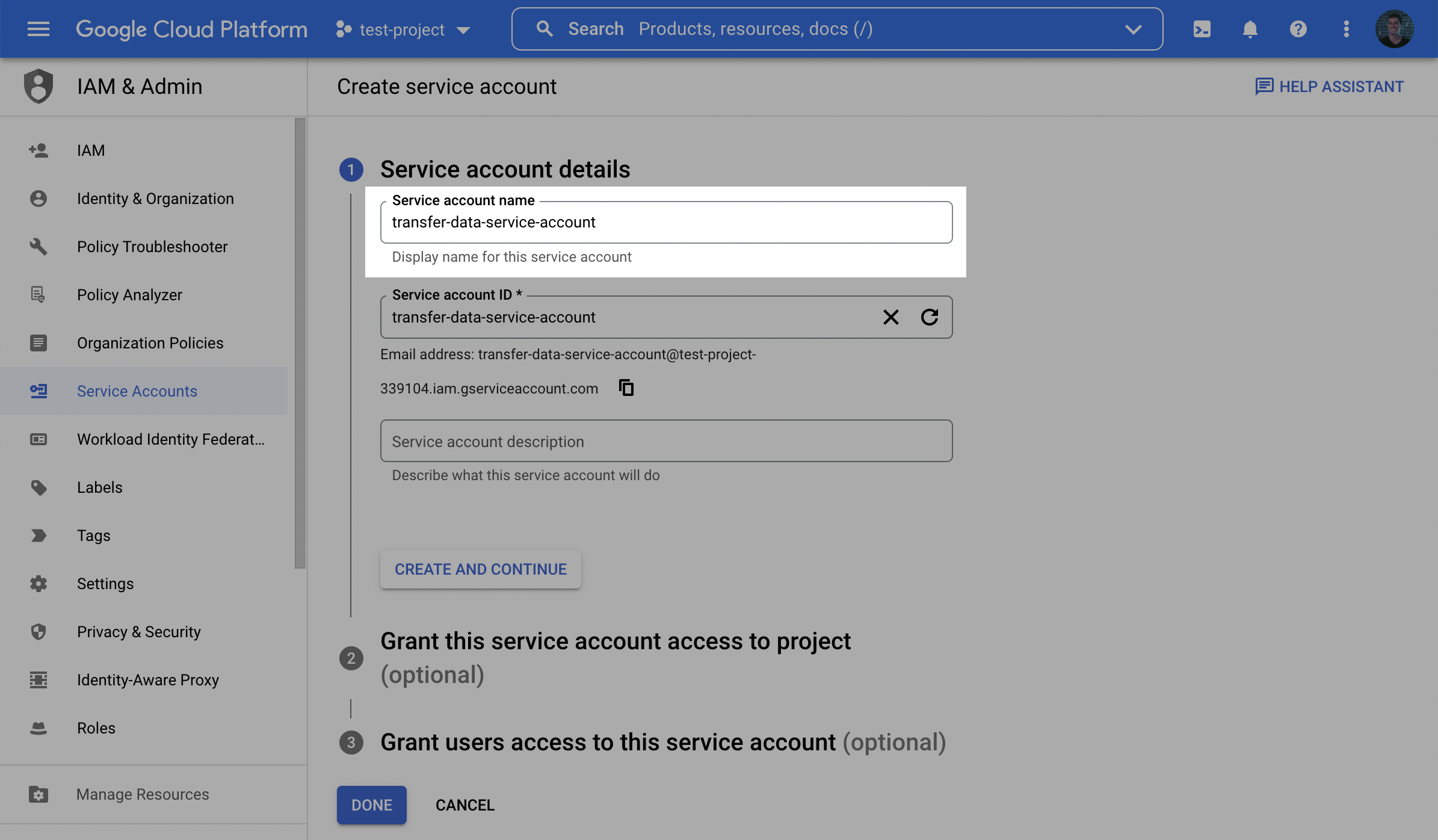
3
Grant the BigQuery User role
Grant the new service account the BigQuery User role. This allows it to run the read queries that extract your data.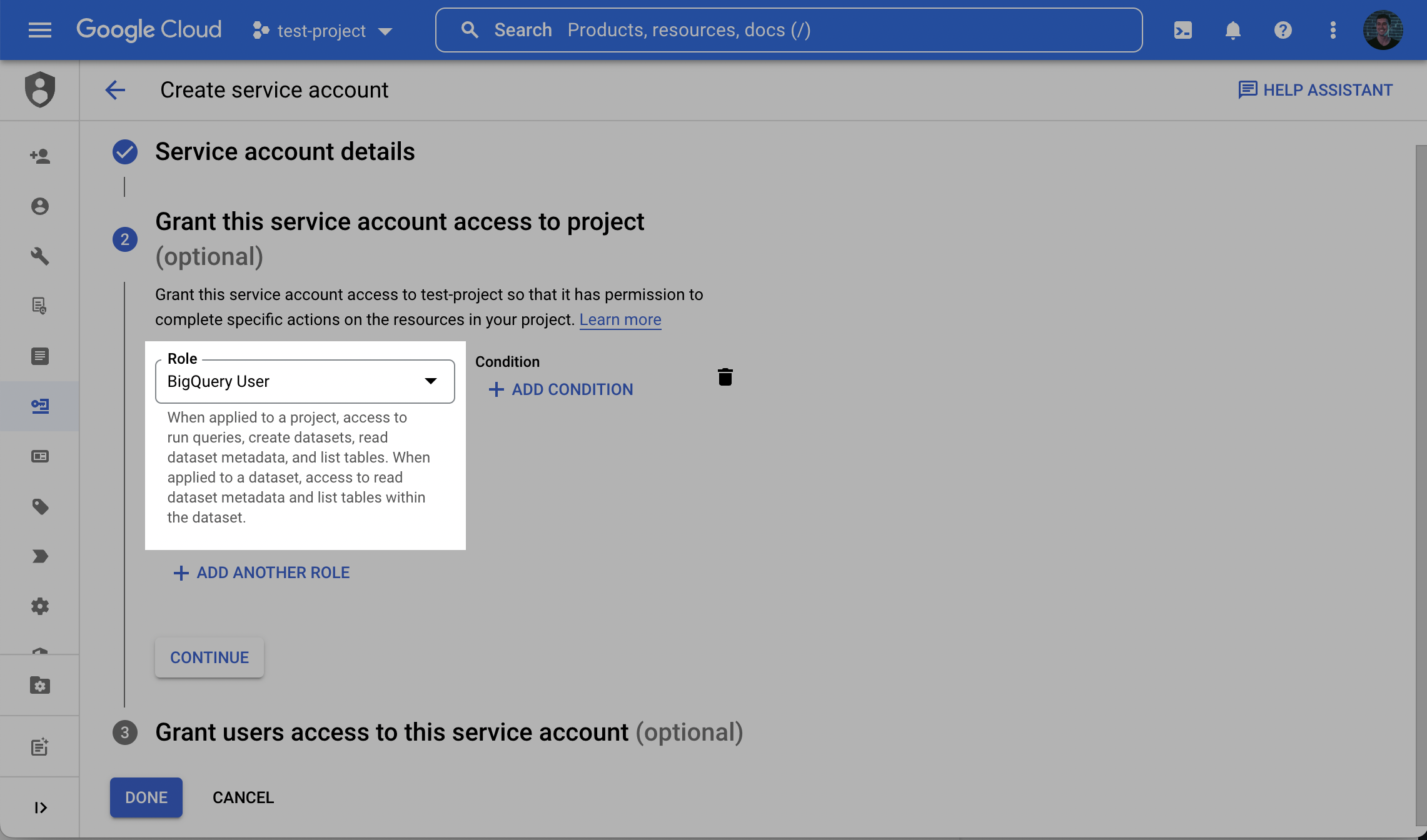
4
Finish and note the email
Click Done to finish creating the account. Open the service account in the list and make a note of its email, which looks like
service-account-name@project-id.iam.gserviceaccount.com. You will provide this email in Step 5.Step 2: grant read access to the source dataset
1
Open the dataset sharing settings
In BigQuery, click on the dataset you want to read from. In the menu on the right, click Sharing and then click Permissions.
2
Add the service account as a principal
Click Add Principal.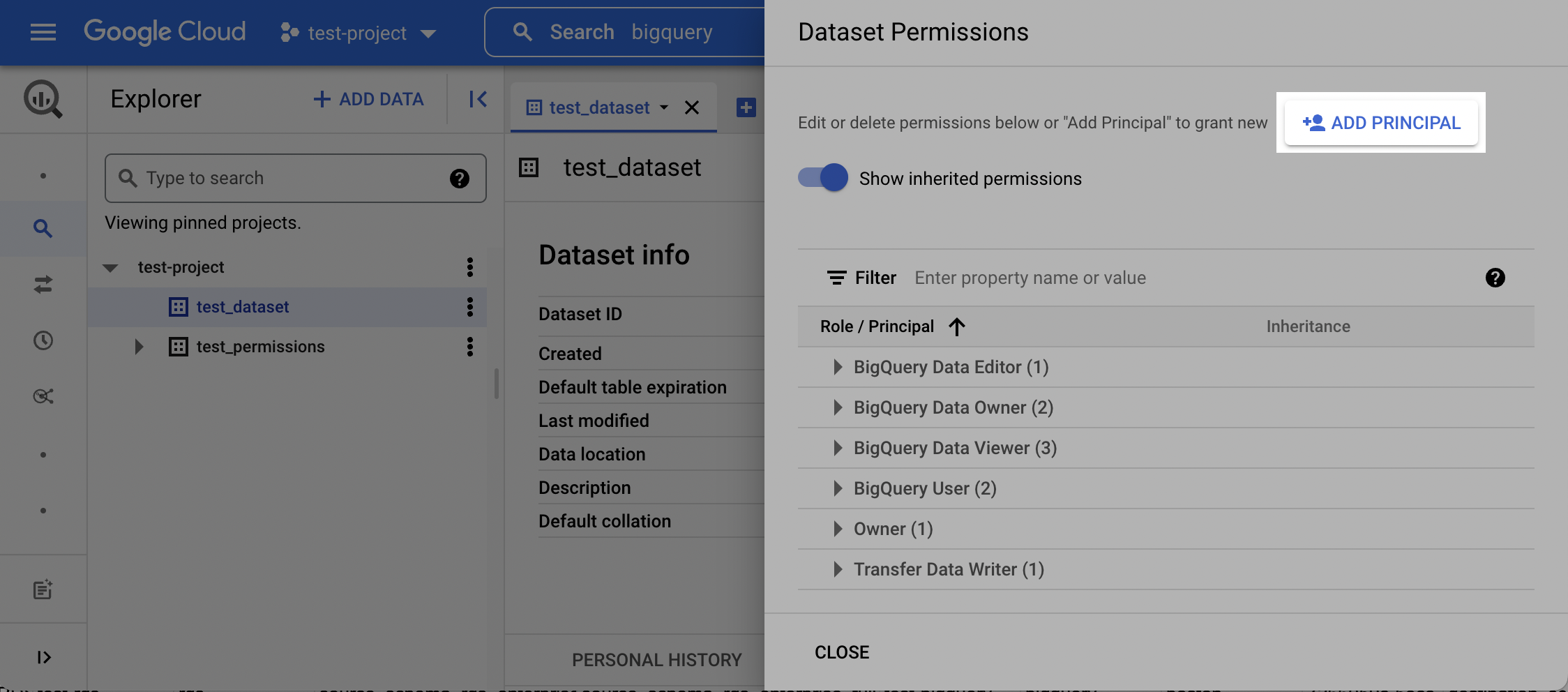
3
Grant the BigQuery Data Viewer role
Add the service account you created in Step 1, grant it the BigQuery Data Viewer role, and click Save.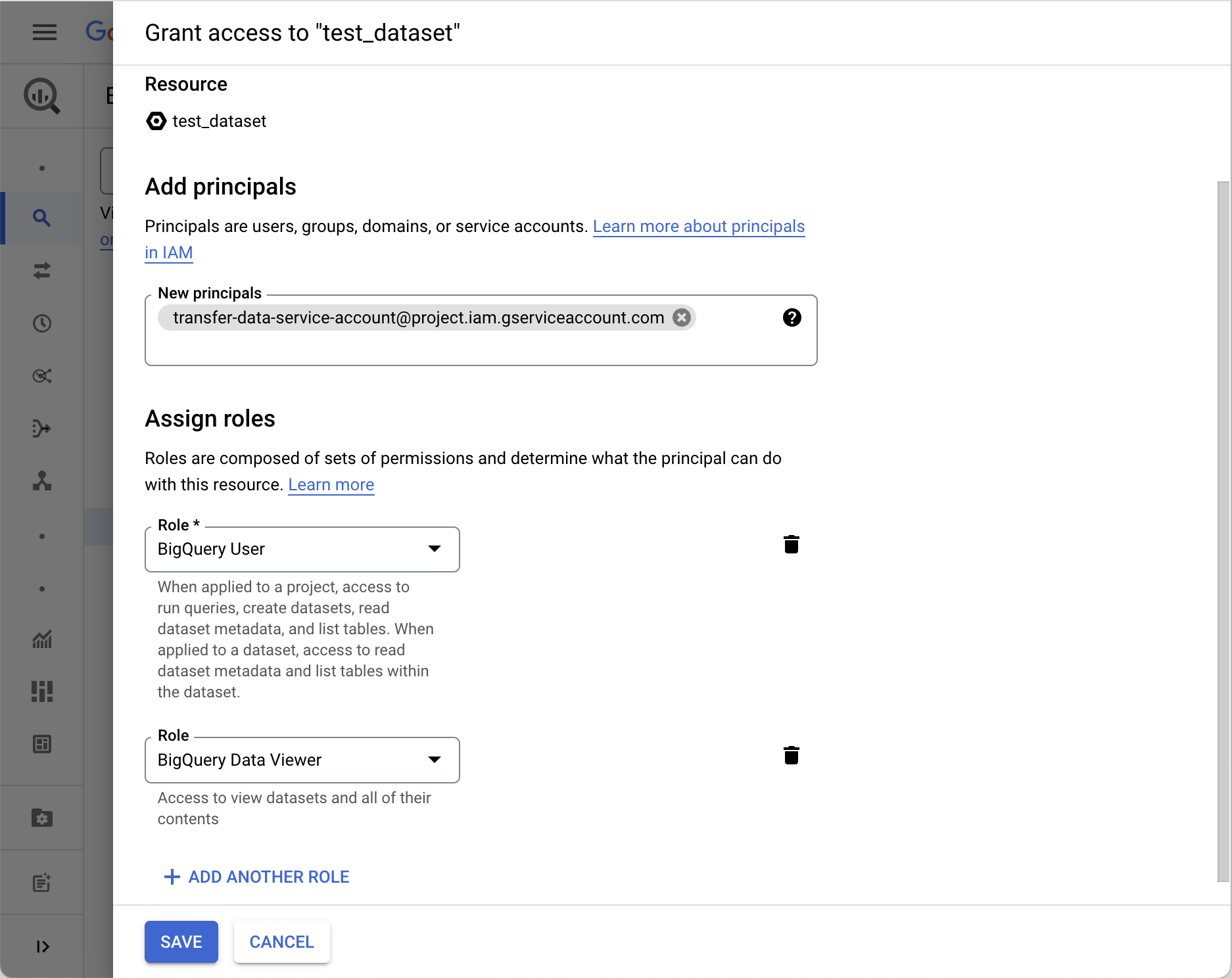
Step 3: authorize authentication
Choose the authentication method that fits your security policy. Service account impersonation is recommended because it avoids sharing any long-lived credentials.- Service account impersonation (recommended)
- Service account key
1
Open the service account permissions
In the IAM & Admin menu, open the Service Accounts tab and click the service account you created in Step 1 to open its details. Navigate to the Principals with access tab and click Grant Access.
2
Grant permission to impersonate
Add our service account as a principal and grant it both the Service Account Token Creator and Service Account User roles. Reach out to your account representative for the exact service account email to add.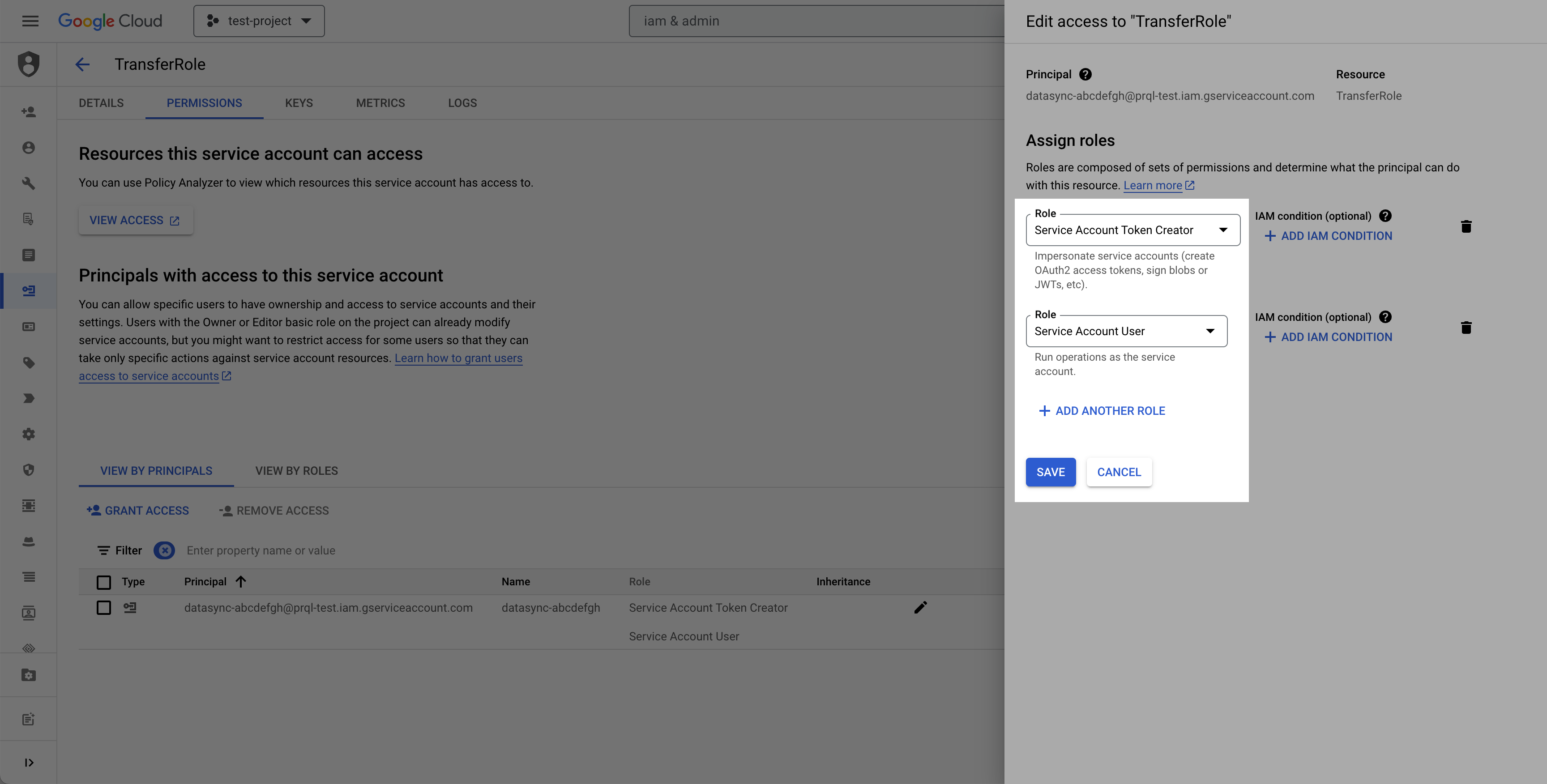
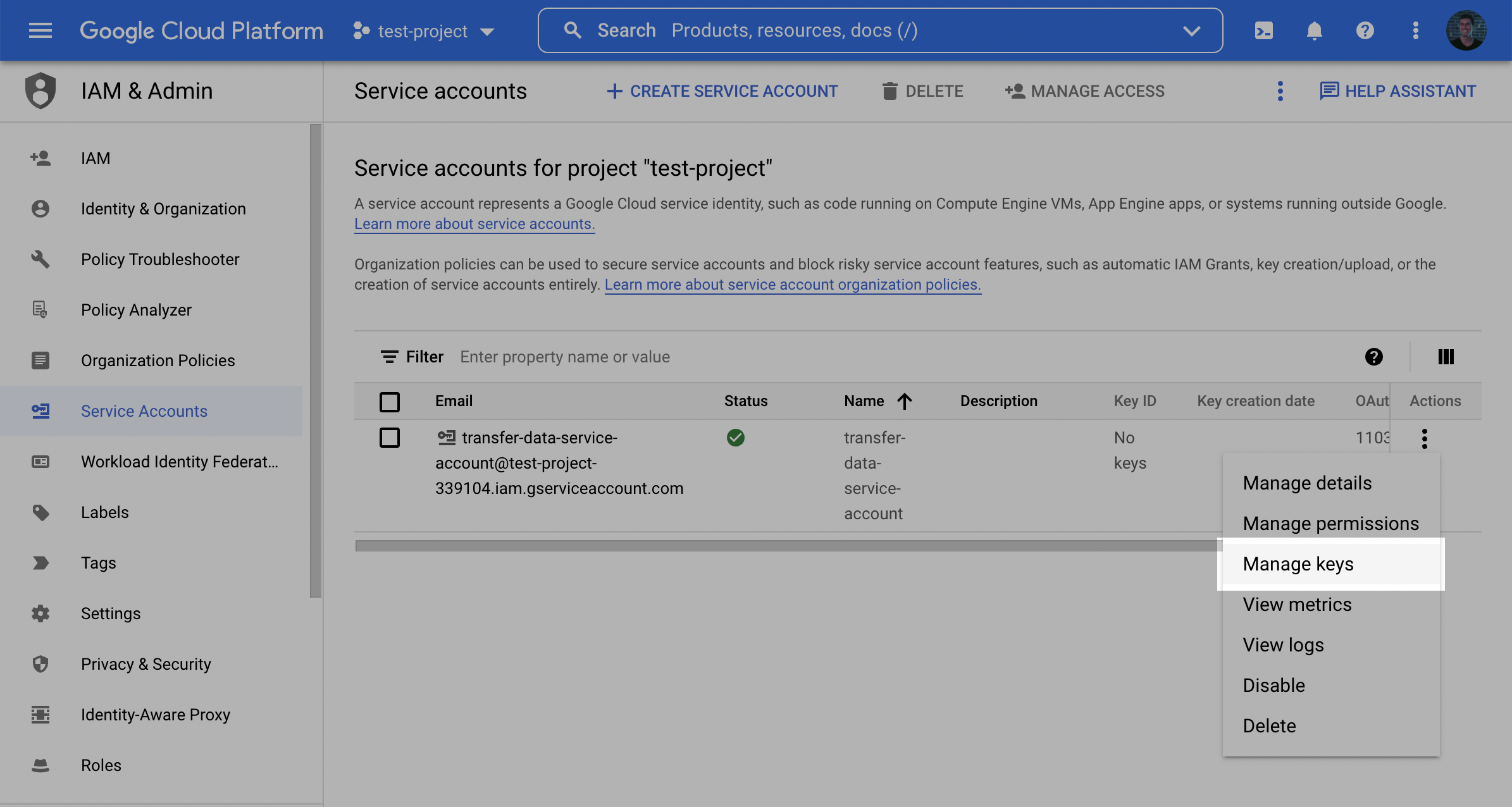
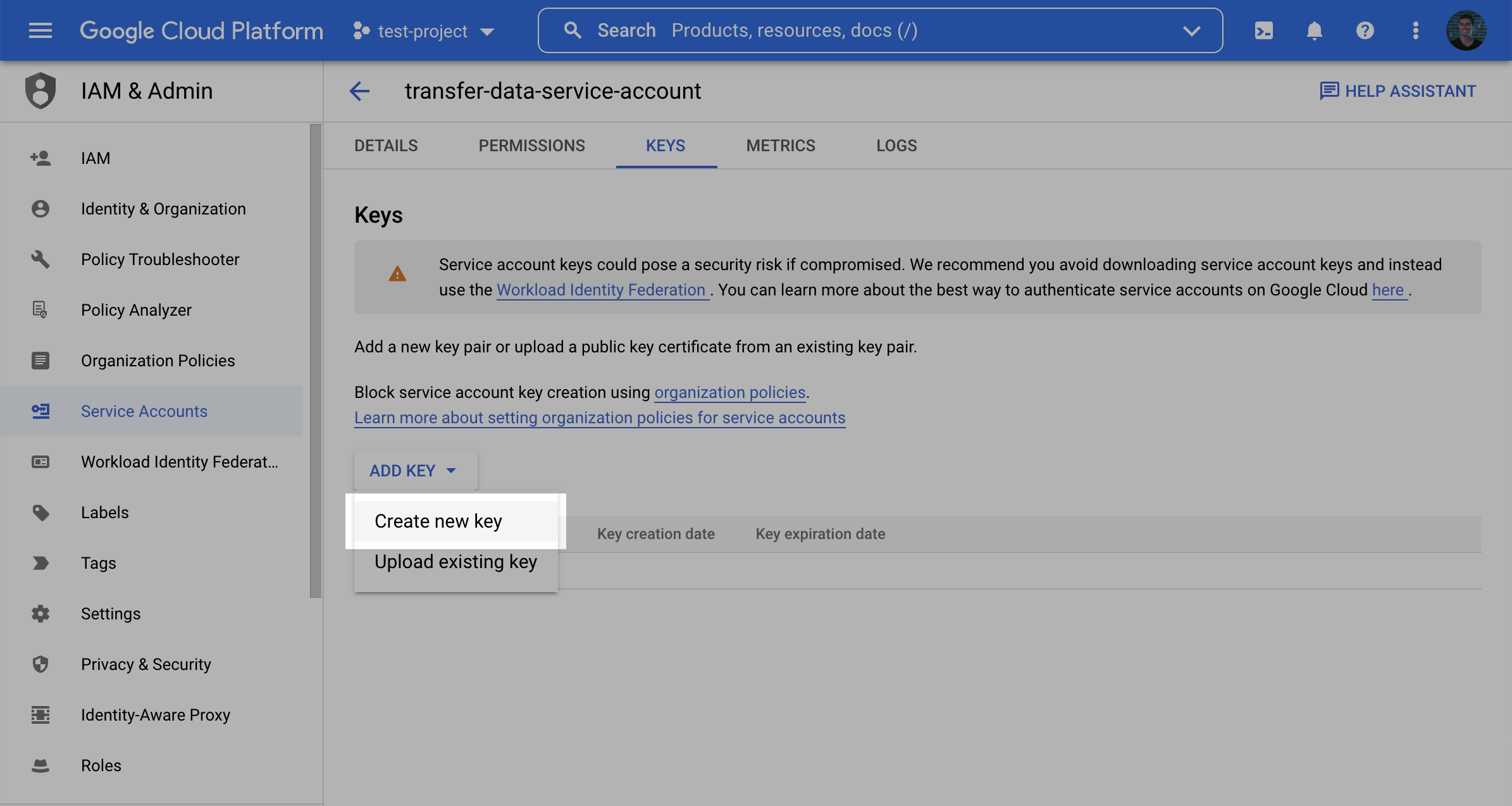
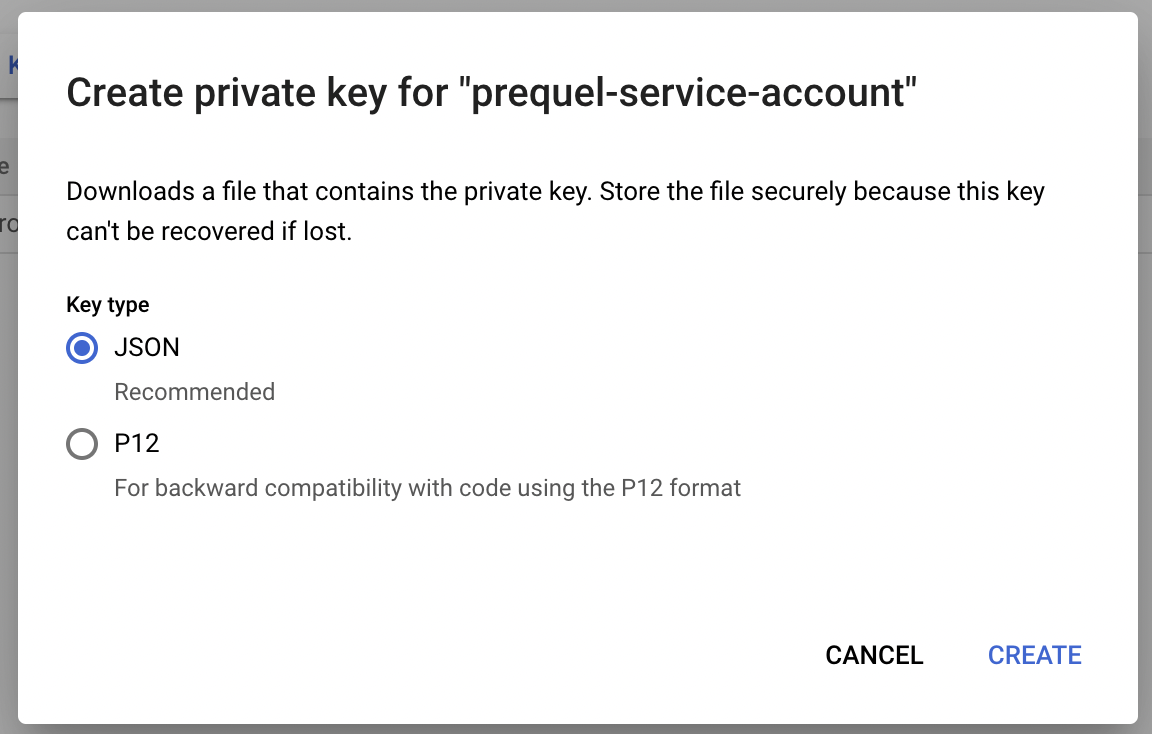
Step 4: find your project ID and data location
1
Find the Project ID
In the Google Cloud console, open the projects list dropdown and make a note of your BigQuery Project ID.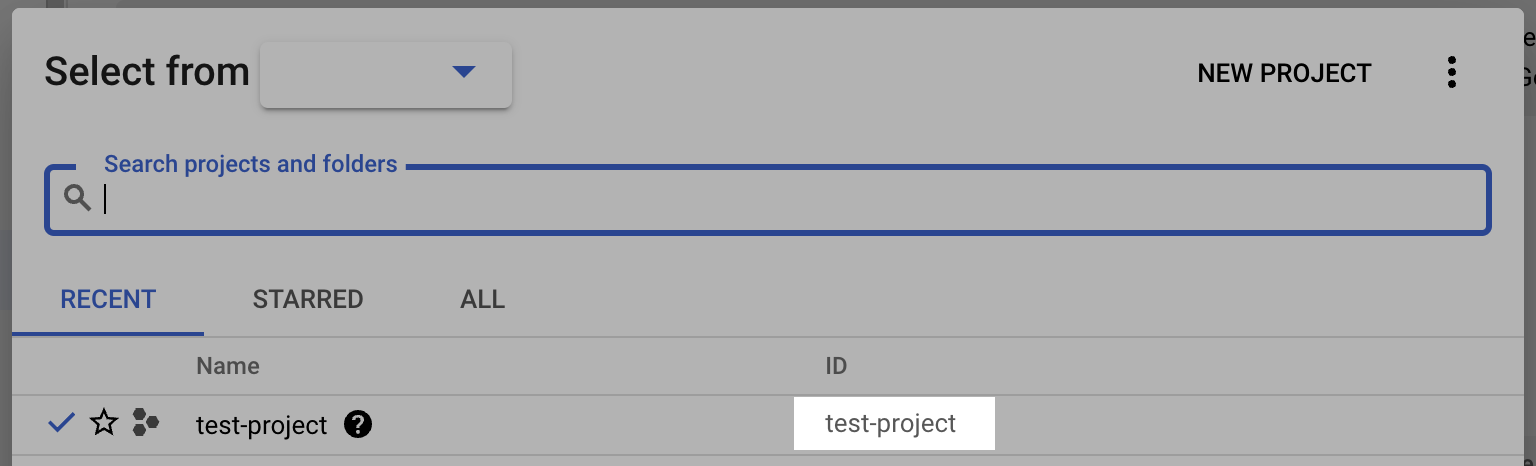
2
Find the data location
Open your source dataset in BigQuery and make a note of its Data location, such as
us or us-central1. You will provide this value as the region in Step 5.This connection supports Google Cloud organization policies that restrict identities by domain. If your organization enforces domain-restricted sharing, you can add our principal to your allow list following Google’s guidance on restricting identities by domain. Contact your account representative for the customer ID to add.
Step 5: submit your connection details
Provide the following details to complete the source setup:- The name is a descriptive name of the source.
- The Project ID from Step 4.
- The region (the data location) from Step 4.
- The authentication credentials from Step 3:
- If using impersonation: the service account email from Step 1.
- If using a service account key: the service account email from Step 1 and the JSON key you downloaded.
Terraform
If your organization manages infrastructure with Terraform, you can use the configuration below instead of the steps above. It sets up the same resources and permissions, using service account impersonation.- Use the official
hashicorp/googleprovider. The project needs the IAM API enabled. - In
terraform.tfvars, setproject_id,dataset_id(an existing dataset), andvendor_service_account_email(our service account email, which your account representative provides). The optionalservice_account_idinput defaults totransfer-source. - After
terraform apply, use theproject_id,region, andservice_account_emailoutputs to complete the connection setup. Print each withterraform output -raw <name>.