

Step 1: create an access token
1
Open the storage account
In the Azure portal, navigate to the Storage accounts service and click the account that contains the container you want to read from. Make a note of the storage account name and the container name.
2
Open the shared access signature settings
In the navigation pane, under “Security + networking”, click Shared access signature.
3
Configure the token permissions
Update the required accessible services and permissions:
- Under “Allowed services”, select Blob.
- Under “Allowed resource types”, select Container and Object.
- Under “Allowed permissions”, select Read and List.
4
Generate the token
Select a “Start and expiry date/time” based on your security posture (for example, set the expiration date 6 months into the future), and click Generate SAS and connection string. Make a note of the SAS token that is generated.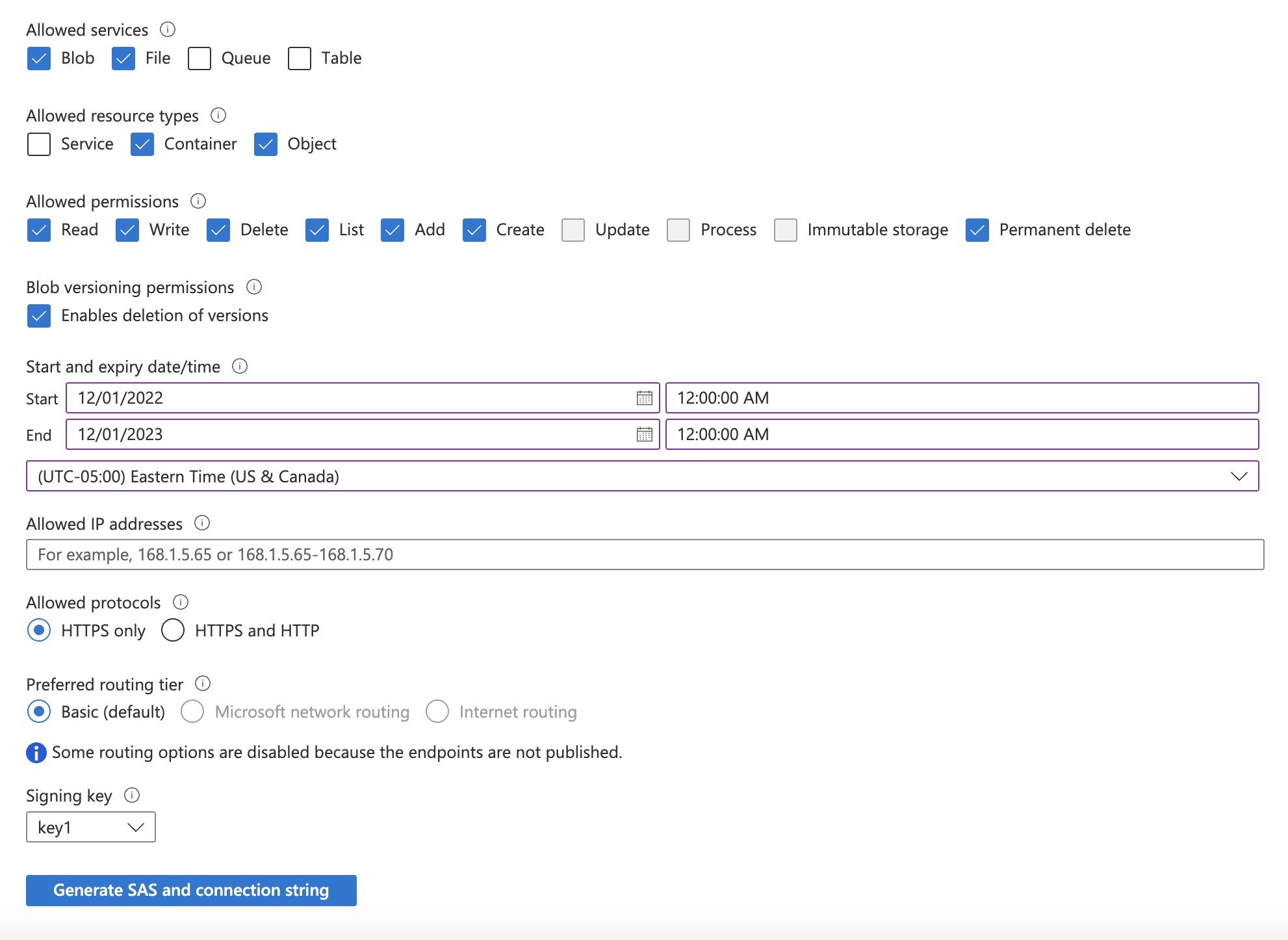
If you limit network access on the storage account, add the static IP to the allowed address range so we can reach the container. Reach out to your account representative for the static IP address to use.
Step 2: submit your connection details
Provide the following details to complete the source setup:- The name is a descriptive name of the source.
- The storage account name from Step 1.
- The container name from Step 1.
- The Storage account SAS token from Step 1.
Terraform
If your organization manages infrastructure with Terraform, you can use the configuration below instead of the steps above. It generates the same SAS token and creates nothing in your account.- Use the official
hashicorp/azurermprovider, version 4.9 or later. Your provider configuration needs afeatures {}block. Your Azure credentials need permission to list the storage account’s access keys, and the storage account must allow storage account key access. - In
terraform.tfvars, setstorage_account_name,resource_group_name,container_name,sas_start, andsas_expiry(RFC 3339 timestamps; the expiry must be in the future). - After
terraform apply, use thestorage_account_name,container_name, andsas_tokenoutputs to complete the connection setup. Print each withterraform output -raw <name>.