

- A Redshift database user in your workgroup. You create this read-only user in Step 3. It owns the schema and table privileges needed to read your data.
- An AWS IAM role or access keys in your AWS account. You configure this in Step 5. It holds the permission to call
redshift-serverless:GetCredentialson your workgroup and the S3 permissions used to stage data during a sync. We use this identity to obtain short-lived database credentials, so no long-lived database password is required.
Step 1: find workgroup connection details
1
Select the workgroup
- In the Redshift console, click Workgroups.
- Select the workgroup you would like to connect, and make note of the workgroup name.
2
Make note of endpoint details
In the General information pane, make note of the Endpoint details and the AWS region that the workgroup is hosted in. You may need to use the copy icon to copy the full details to discover the full endpoint and port number.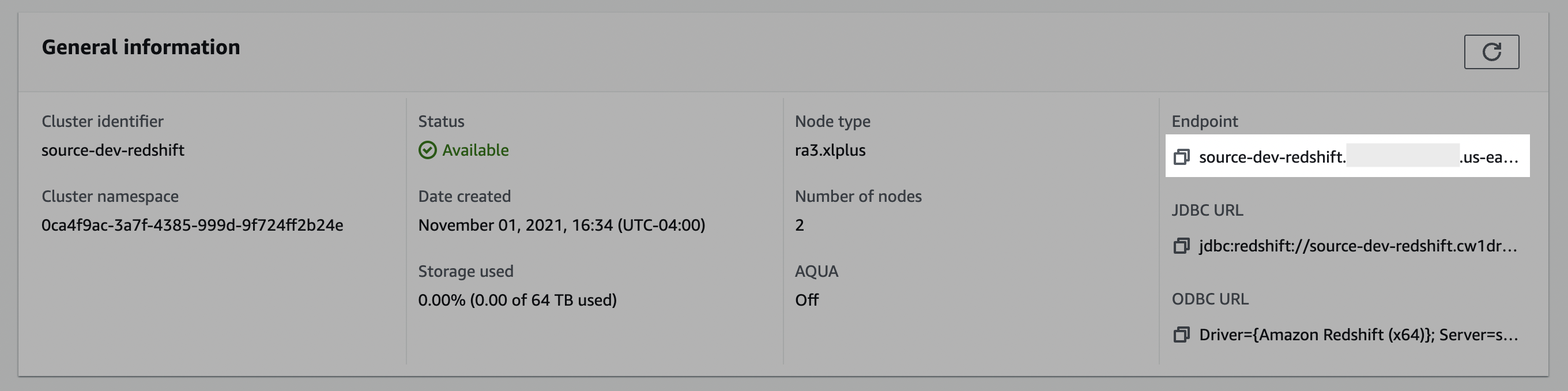
Step 2: whitelist connection
1
Open the VPC security group
- In the Redshift console, click Workgroups.
- Select the workgroup you would like to connect.
- Click the Properties tab.
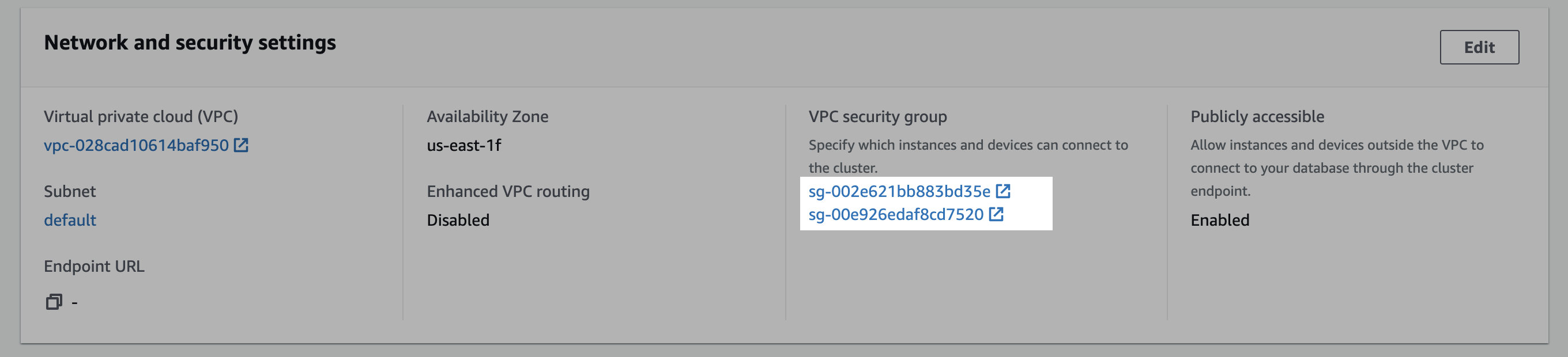
- Scroll down to the Network and security settings section.
- In the VPC security group field, select a security group to open it.
2
Edit inbound rules
- In the Security Groups window, click Inbound rules.
- Click Edit inbound rules.
-
In the Edit the Inbound rules window, create a custom TCP rule for the static IP:
- Select Custom TCP in the drop-down menu.
- Enter your Redshift port number (likely
5439). - Enter the static IP address.
- Click Add rule.
Step 3: create a limited user
1
Connect to Redshift
Connect to your Redshift Serverless workgroup using the SQL client.
2
Create the user
Execute the following query to create a user. Because authentication uses temporary credentials issued by
redshift-serverless:GetCredentials, a password is not required and the user can be created with PASSWORD DISABLE.Create user
3
Grant read-only privileges
Execute the following query to grant the user read-only privileges (replace
<schema> with your schema name):Grant read-only access
Step 4: create a staging bucket
Redshift Serverless reads use the high-throughputUNLOAD path, which stages data in an S3 bucket in your account before it is read. Files are cleaned up automatically after each sync.
1
Create the bucket
- Navigate to the S3 service page.
- Click Create bucket.
- Enter a Bucket name and modify any of the default settings as desired. Object Ownership can be set to ACLs disabled and Block Public Access settings for this bucket can be set to Block all public access as recommended by AWS. Make note of the bucket name and AWS region.
- Click Create bucket.
You may configure a lifecycle rule on the staging bucket to automatically delete objects older than two days, as the bucket is not used to persist data. In the bucket Management tab, click Create lifecycle rule and set an expiration action for current versions of objects with a two-day age. Sync logic cleans up files after each sync completes, so this is an optional step.
Step 5: configure AWS authentication
You must provide AWS credentials for workgroup access. You can authenticate with either an IAM role (recommended) or AWS access keys. In both cases, the identity needs permission to callredshift-serverless:GetCredentials on your workgroup and to read, write, and delete objects in the staging bucket from Step 4.
- IAM role (recommended)
- AWS access keys
1
Create an IAM policy
In the AWS IAM console, create a new policy with the JSON below. Replace
REGION_NAME, ACCOUNT_ID, and WORKGROUP_NAME_OR_ID with values that match your workgroup, and replace BUCKET_NAME with the staging bucket from Step 4.The first bucket permission applies to
BUCKET_NAME, whereas the second applies only to the bucket’s contents at BUCKET_NAME/*. This is an important distinction.IAM policy
2
Create an IAM role
In the AWS IAM console, create a new role using the custom trust policy below, and attach the permissions policy you created in the previous step. Reach out to your contact for the value of
<some_service_account_identifier>.Trust policy
3
Note the role ARN
After the role is created, copy its ARN (for example,
arn:aws:iam::123456789012:role/source-redshift-serverless). You will provide this ARN in Step 6.Step 6: submit your connection details
Provide the following details to complete the source setup:- The name is a descriptive name of the source.
- The workgroup name from Step 1.
- The host (e.g.,
workgroup.123456789.us-east-1.redshift-serverless.amazonaws.com). - The port [e.g.,
5439]. - The database for your Redshift Serverless workgroup.
- The username from Step 3.
- The S3 bucket name and S3 bucket region from Step 4.
- The authentication credentials from Step 5:
- If using an IAM role: the IAM role ARN.
- If using AWS access keys: the AWS access key ID and the AWS secret access key.