> ## Documentation Index
> Fetch the complete documentation index at: https://docs.prequel.co/llms.txt
> Use this file to discover all available pages before exploring further.
# Google cloud storage
> Connect your Google Cloud Storage bucket as a source
By default, GCS authentication uses role-based access. You create a service account in your own GCP project that holds the read permissions described below. Our service account is then granted permission to impersonate yours using short-lived tokens. No private key is shared, and you can revoke access at any time through your IAM settings.
## Step 1: create a service account
In the GCP console, in the same project as your bucket, navigate to the **IAM & Admin** menu, open the **Service Accounts** tab, and click **Create service account**.

Give the service account a descriptive name and click **Create and Continue**. Click **Continue** and **Done** through the remaining optional steps without assigning any roles.
Open the service account in the list and make a note of its **email**, which looks like `service-account-name@project-id.iam.gserviceaccount.com`. You will provide this email in Step 5.
## Step 2: grant read access to the bucket
Navigate to the **Cloud Storage** page, click the bucket you want to read from, select the **Permissions** tab, and click **Grant access**.
Add the service account you created in Step 1 as a principal and assign both the **Storage Legacy Bucket Reader** and **Storage Legacy Object Reader** roles, then click **Save**. Together these grant the `storage.buckets.get`, `storage.objects.list`, and `storage.objects.get` permissions used to read your data.
## Step 3: authorize authentication
Choose the authentication method that fits your security policy.
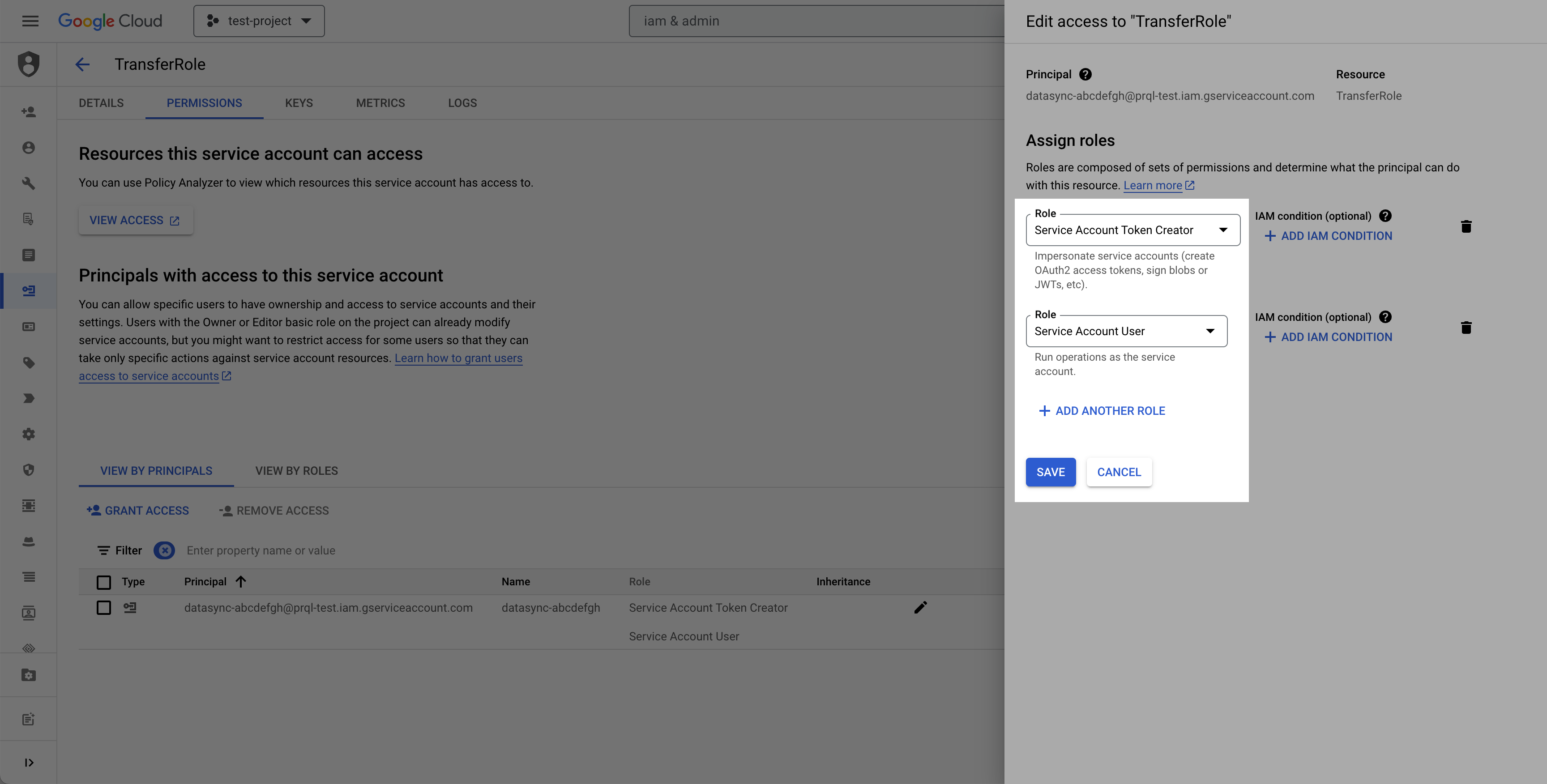
In the **IAM & Admin** menu, open the **Service Accounts** tab and click the service account you created in Step 1 to open its details. Navigate to the **Principals with access** tab and click **Grant Access**.
Add our service account as a principal and grant it both the **Service Account Token Creator** and **Service Account User** roles. Reach out to your account representative for the exact service account email to add.
An HMAC key is a credential associated with a service account that can be used to access Google Cloud Storage.
Navigate to the **Cloud Storage** page, click into the **Settings** tab, and navigate to the **Interoperability** tab. Click **Create a key for a Service Account**.

Select the service account you created in Step 1 and click **Create key**.

Make a note of the **Access key** and the **Secret**. You will provide these values in Step 5.
A service account key is a long-lived credential. Use this method only when your policy prevents impersonation, and store the key securely.
In the **Service accounts** list, click the **Actions** menu next to the service account from Step 1 and click **Manage keys**.
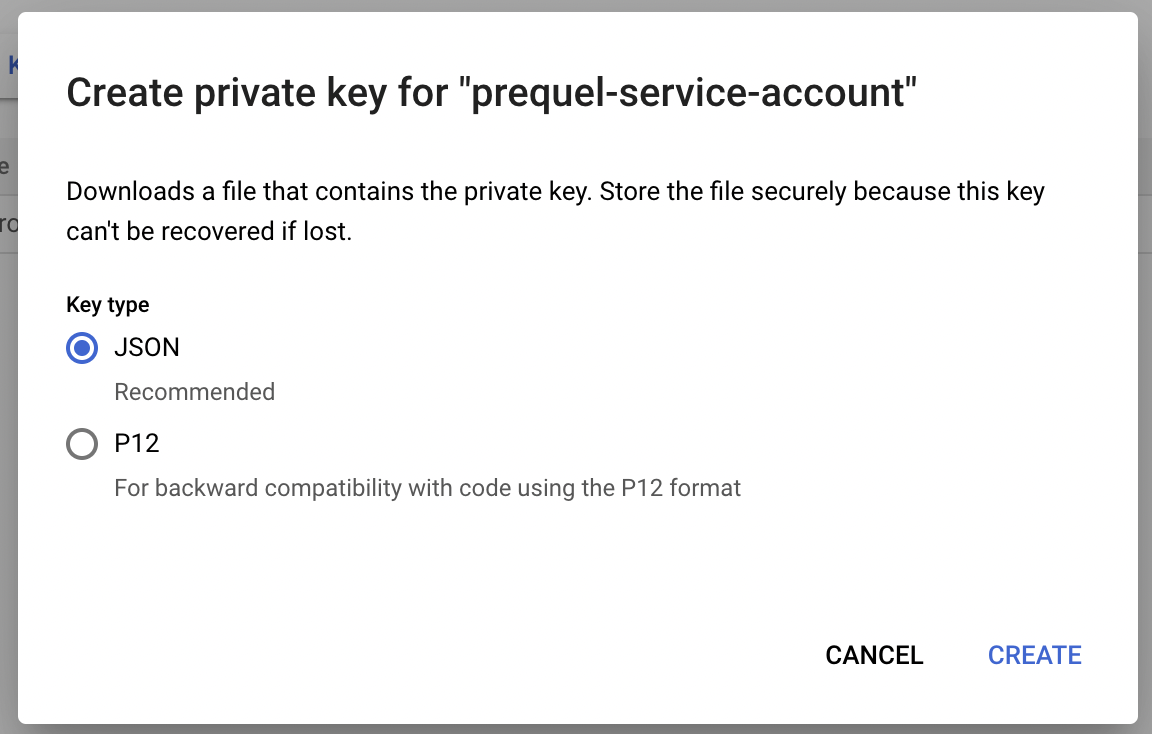
Click **Add key**, then **Create new key**.
Select the **JSON** key type and click **Create**. Store the downloaded key securely, as you will provide its contents in Step 5.
## Step 4: find your bucket region
Navigate to the **Cloud Storage** page, click the bucket you want to read from, and make a note of its **Location**, such as `us` or `us-central1`. You will provide this value as the region in Step 5.
## Step 5: submit your connection details
Provide the following details to complete the source setup:
1. The **name** is a descriptive name of the source.
2. The **bucket name** of the bucket you want to read from.
3. The **region** (the bucket location) from Step 4.
4. The authentication credentials from Step 3:
* If using **impersonation**: the **service account email** from Step 1.
* If using **HMAC keys**: the **access key** and the **secret**.
* If using a **service account key**: the **service account email** from Step 1 and the **JSON key** you downloaded.