> ## Documentation Index
> Fetch the complete documentation index at: https://docs.prequel.co/llms.txt
> Use this file to discover all available pages before exploring further.
# BigQuery
> Connect your BigQuery data warehouse as a source
This connection relies on two service accounts. You create a service account in your own GCP project that holds the BigQuery read permissions described below. Our service account is then granted permission to impersonate yours using short-lived tokens. As a result, no private key is ever shared, every action appears in your own audit logs, and you can revoke access at any time through your IAM settings.
The recommended authentication method, service account impersonation, is covered in Step 3. If your policy requires a different approach, that step also describes how to use a service account key.
## Step 1: create a service account
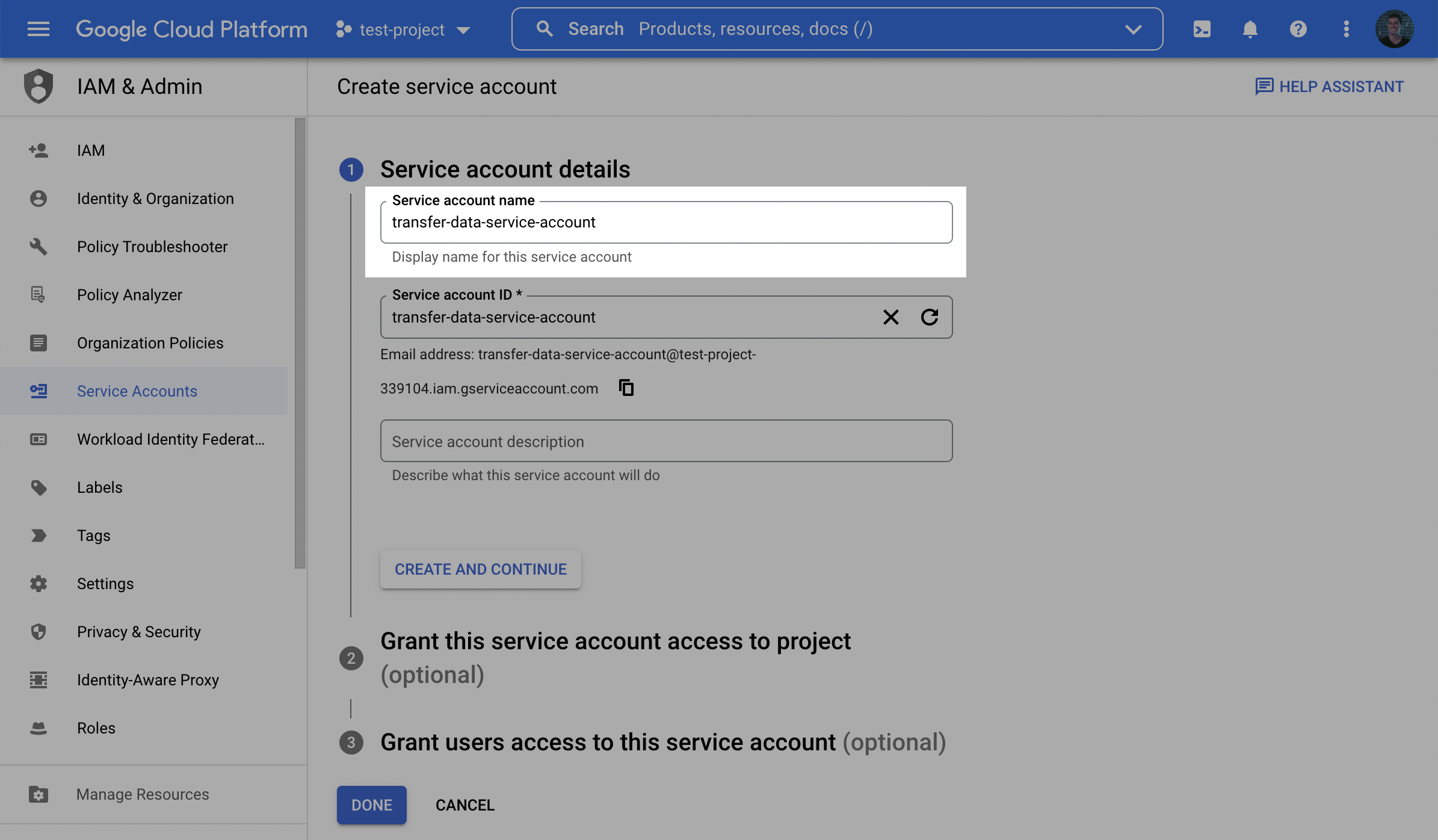
In the GCP console, in the same project as your BigQuery data, navigate to the **IAM & Admin** menu, open the **Service Accounts** tab, and click **Create service account**.

Give the service account a descriptive name and click **Create and Continue**.
Grant the new service account the **BigQuery User** role. This allows it to run the read queries that extract your data.
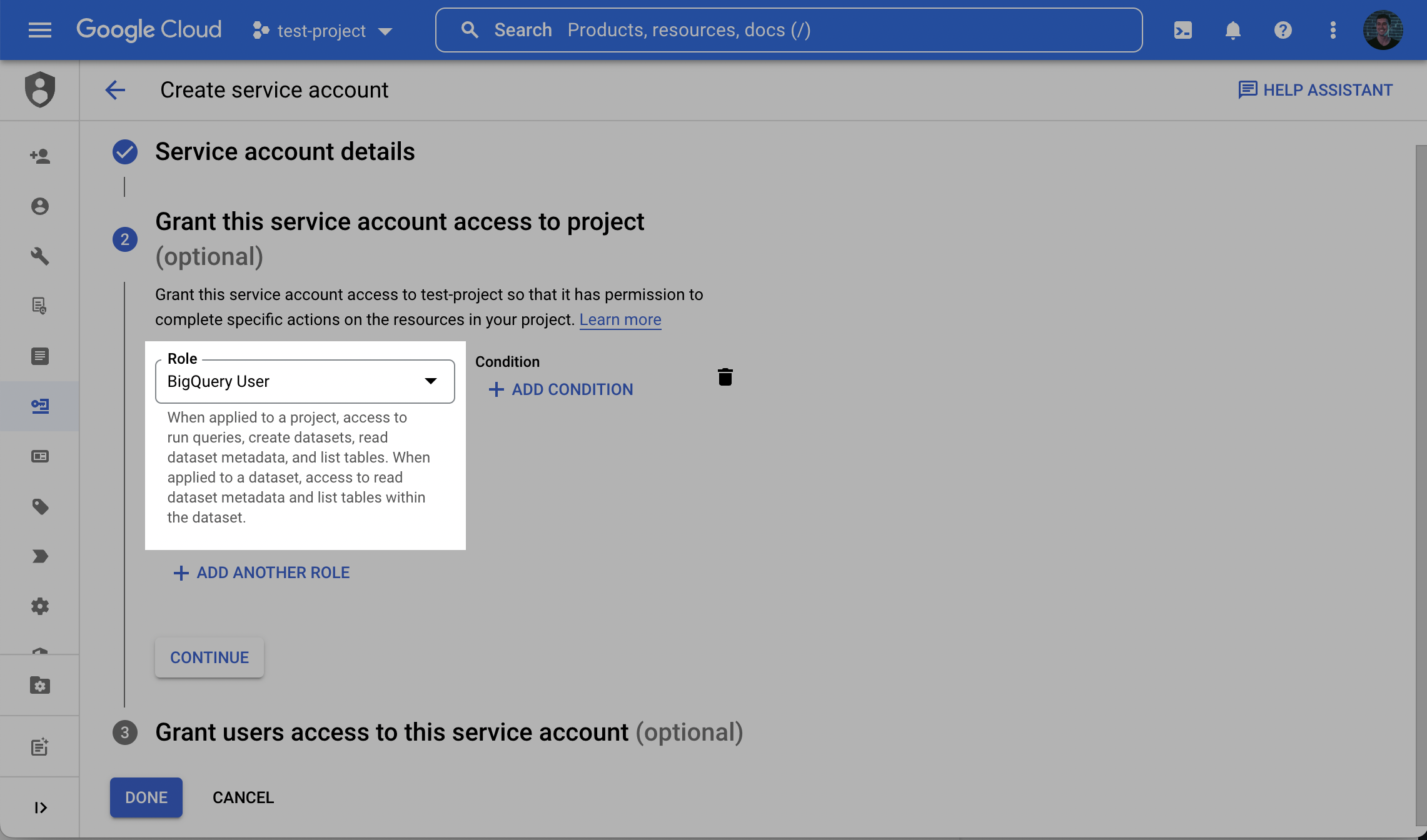
Click **Done** to finish creating the account. Open the service account in the list and make a note of its **email**, which looks like `service-account-name@project-id.iam.gserviceaccount.com`. You will provide this email in Step 5.
## Step 2: grant read access to the source dataset
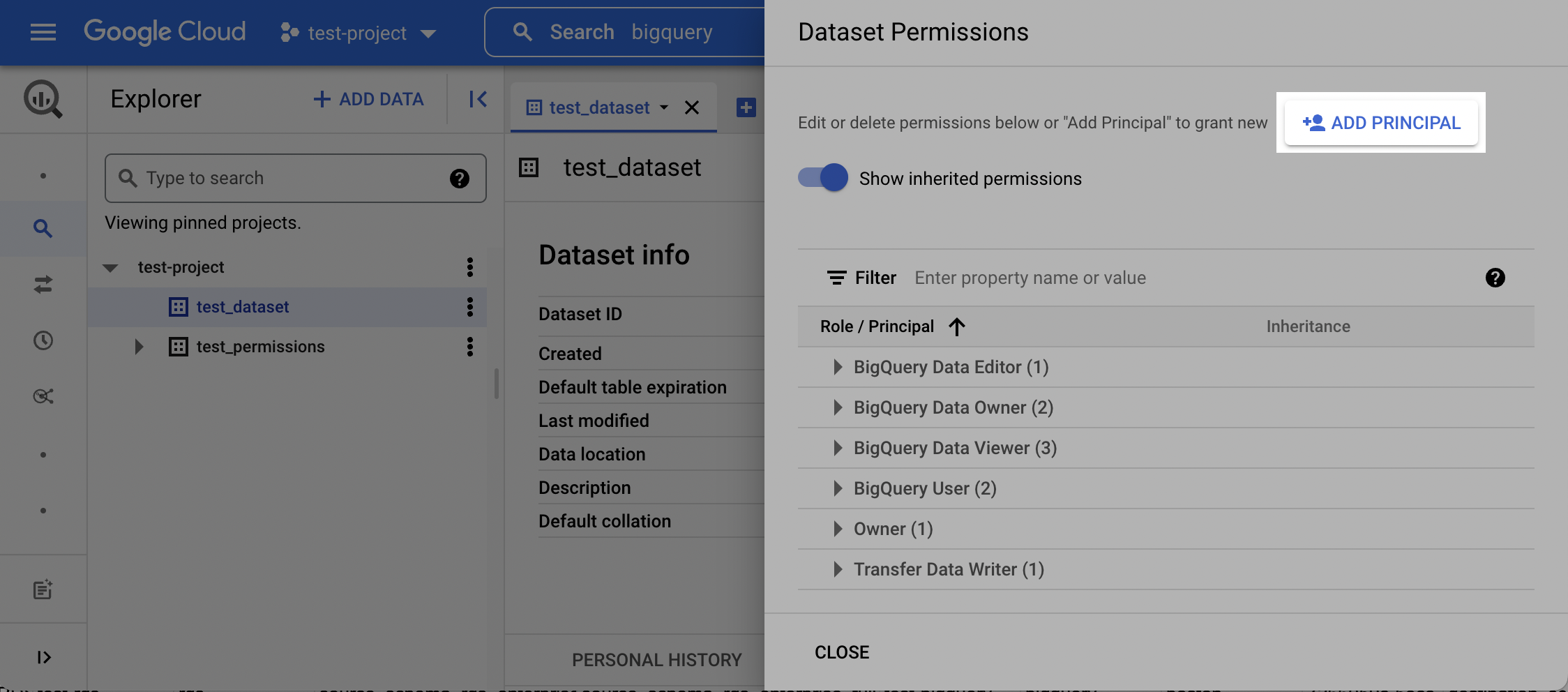
In **BigQuery**, click on the dataset you want to read from. In the menu on the right, click **Sharing** and then click **Permissions**.

Click **Add Principal**.
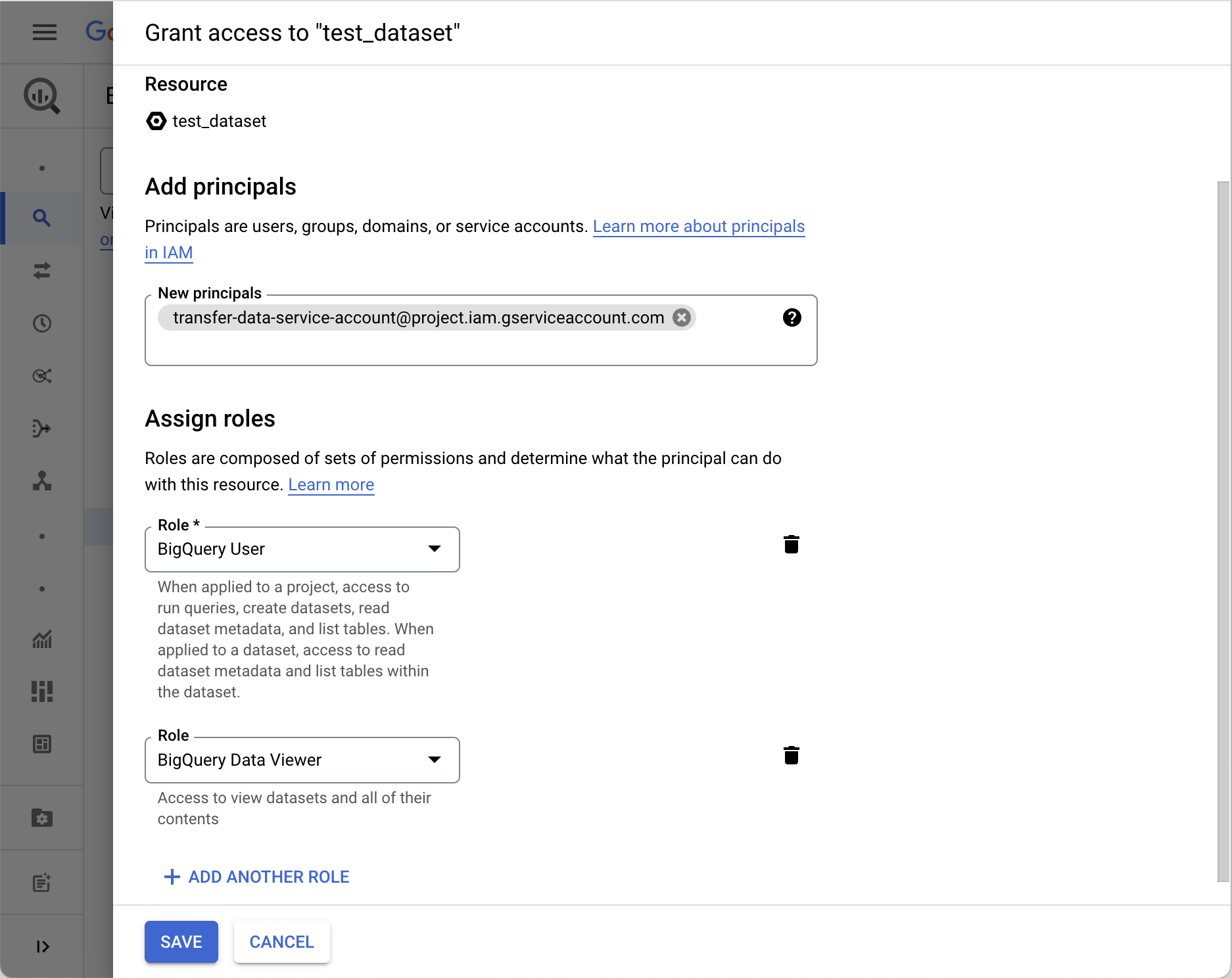
Add the service account you created in Step 1, grant it the **BigQuery Data Viewer** role, and click **Save**.
## Step 3: authorize authentication
Choose the authentication method that fits your security policy. Service account impersonation is recommended because it avoids sharing any long-lived credentials.
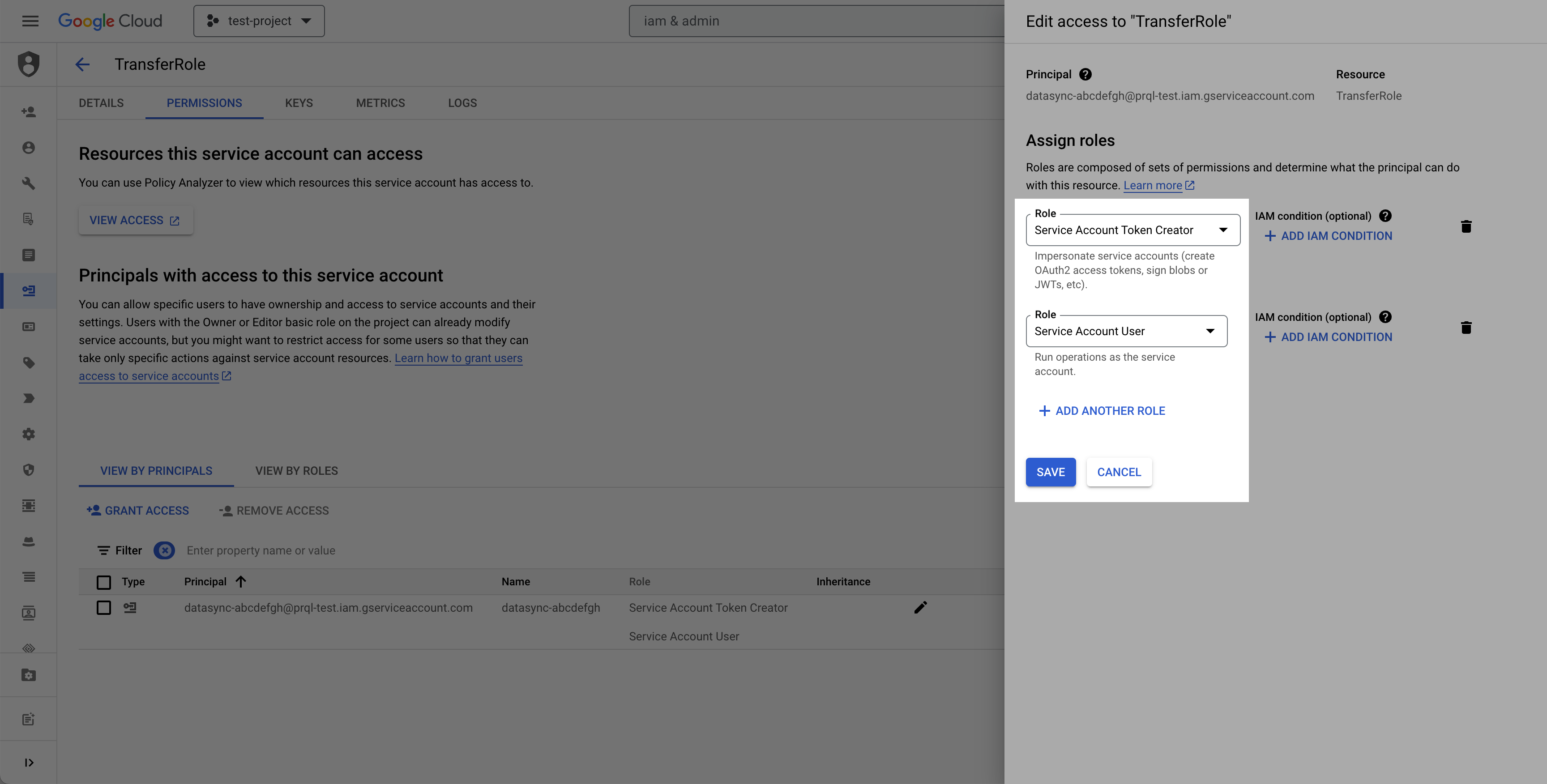
In the **IAM & Admin** menu, open the **Service Accounts** tab and click the service account you created in Step 1 to open its details. Navigate to the **Principals with access** tab and click **Grant Access**.
Add our service account as a principal and grant it both the **Service Account Token Creator** and **Service Account User** roles. Reach out to your account representative for the exact service account email to add.
A service account key is a long-lived credential. Use this method only when your policy prevents impersonation, and store the key securely.
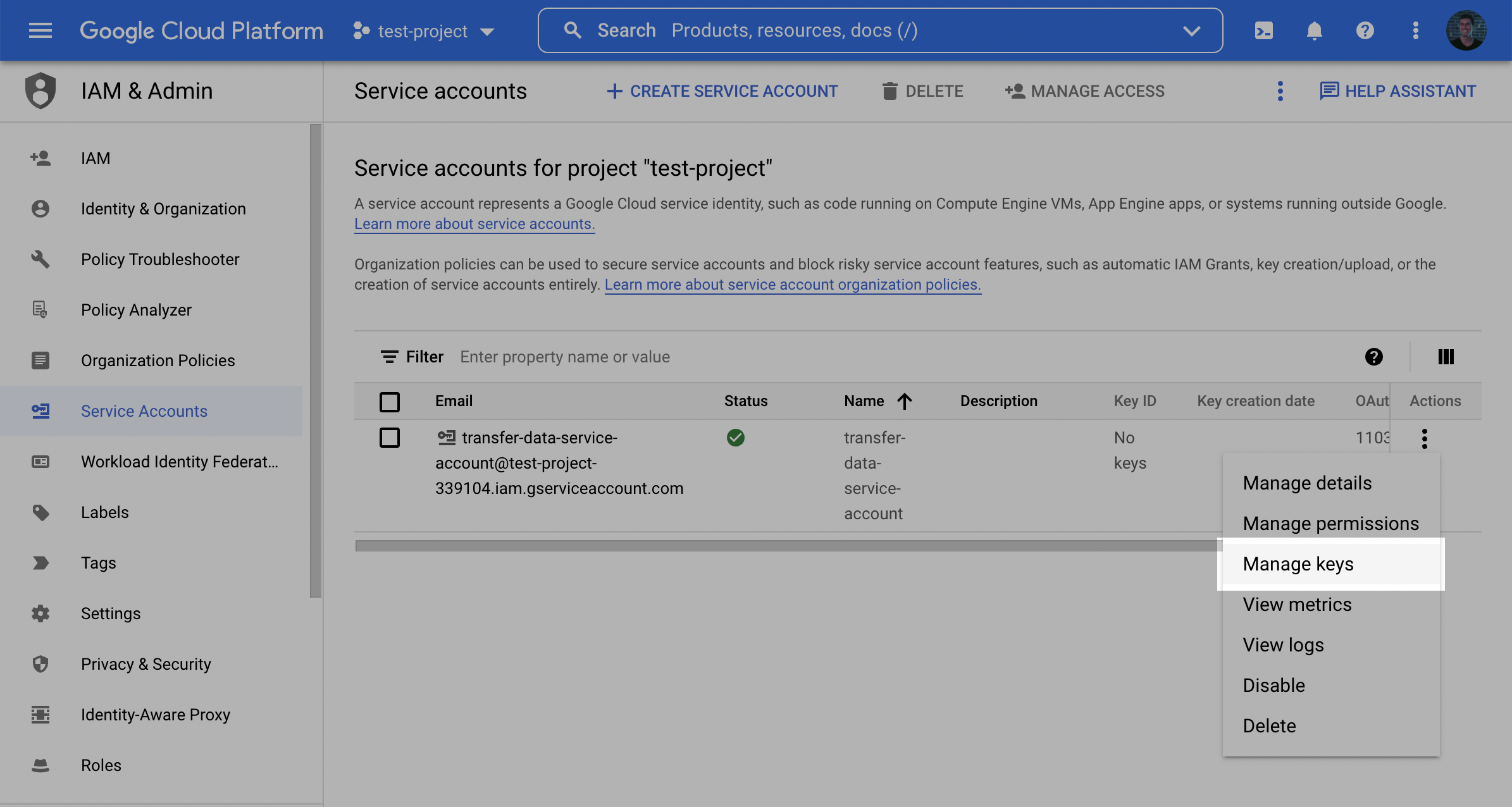
In the **Service accounts** list, click the **Actions** menu next to the service account from Step 1 and click **Manage keys**.
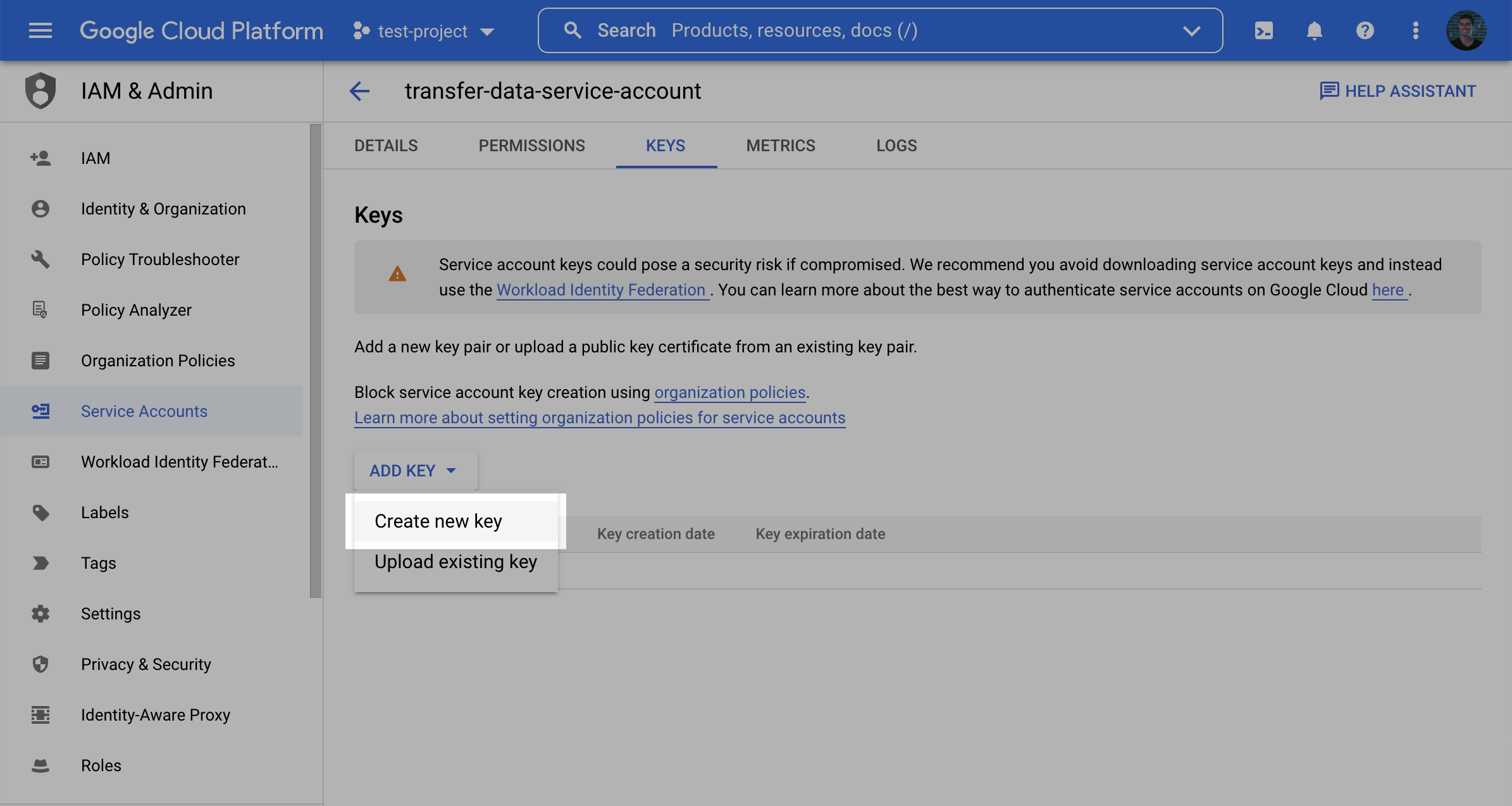
Click **Add key** and then **Create new key**.
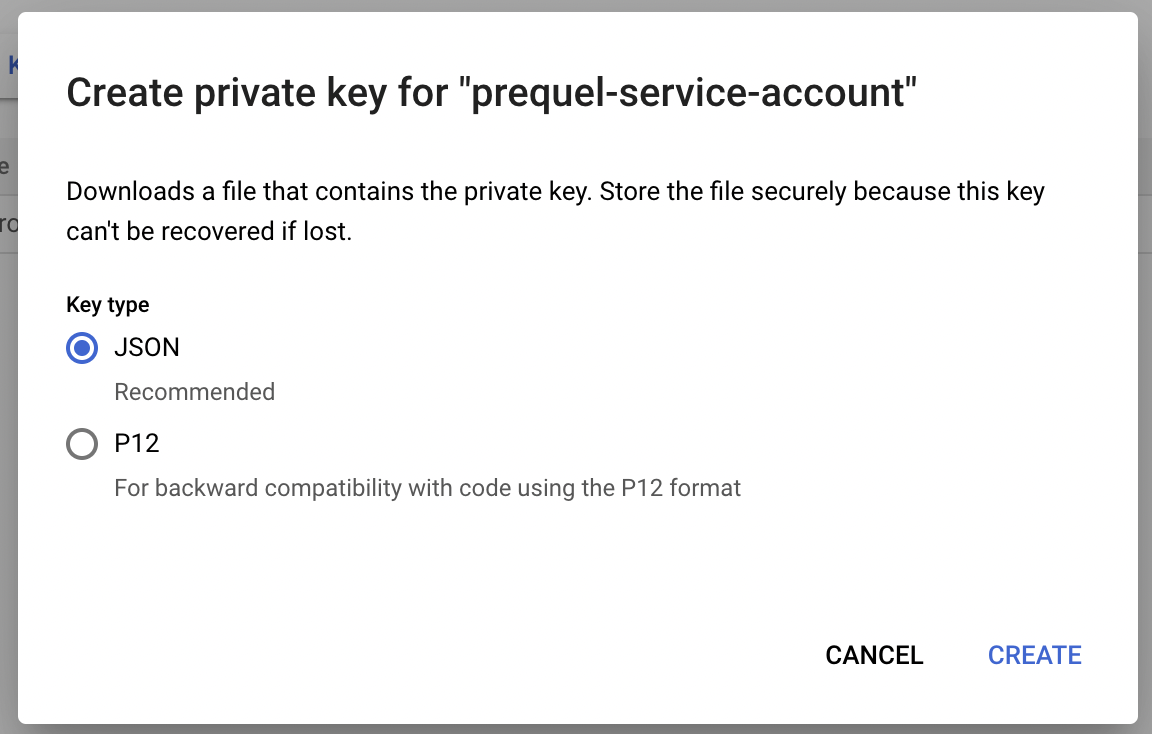
Select the **JSON** key type and click **Create**. Store the downloaded key securely, as you will provide its contents in Step 5.
## Step 4: find your project ID and data location
In the Google Cloud console, open the projects list dropdown and make a note of your BigQuery **Project ID**.
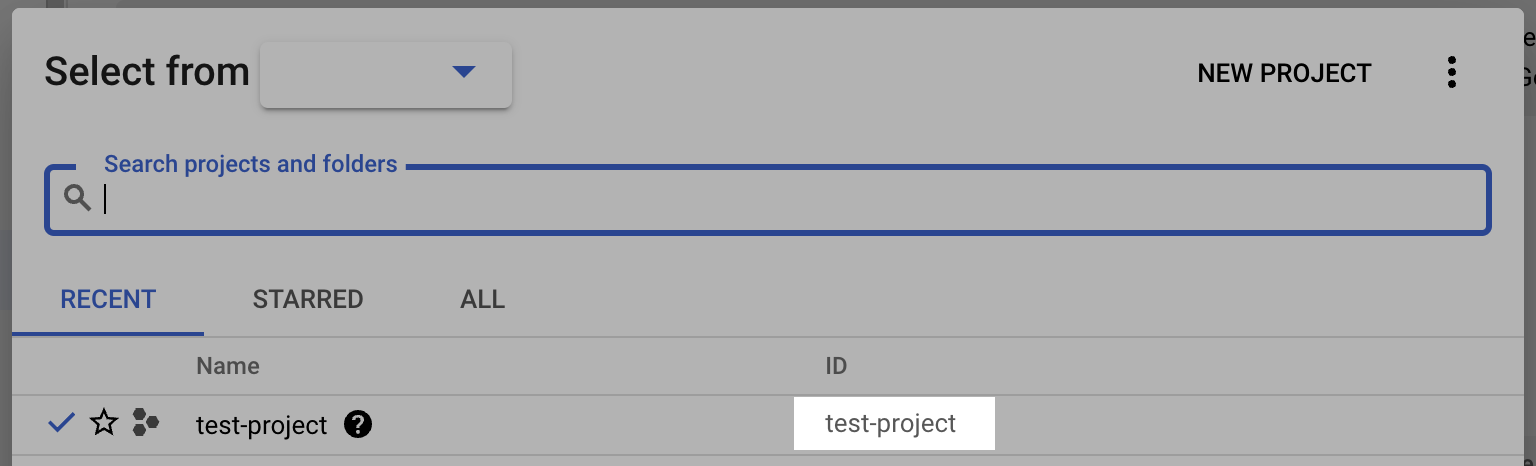
Open your source dataset in BigQuery and make a note of its **Data location**, such as `us` or `us-central1`. You will provide this value as the region in Step 5.
This connection supports Google Cloud organization policies that restrict identities by domain. If your organization enforces domain-restricted sharing, you can add our principal to your allow list following Google's guidance on [restricting identities by domain](https://cloud.google.com/resource-manager/docs/organization-policy/restricting-domains). Contact your account representative for the customer ID to add.
## Step 5: submit your connection details
Provide the following details to complete the source setup:
1. The **name** is a descriptive name of the source.
2. The **Project ID** from Step 4.
3. The **region** (the data location) from Step 4.
4. The authentication credentials from Step 3:
* If using **impersonation**: the **service account email** from Step 1.
* If using a **service account key**: the **service account email** from Step 1 and the **JSON key** you downloaded.