> ## Documentation Index
> Fetch the complete documentation index at: https://docs.prequel.co/llms.txt
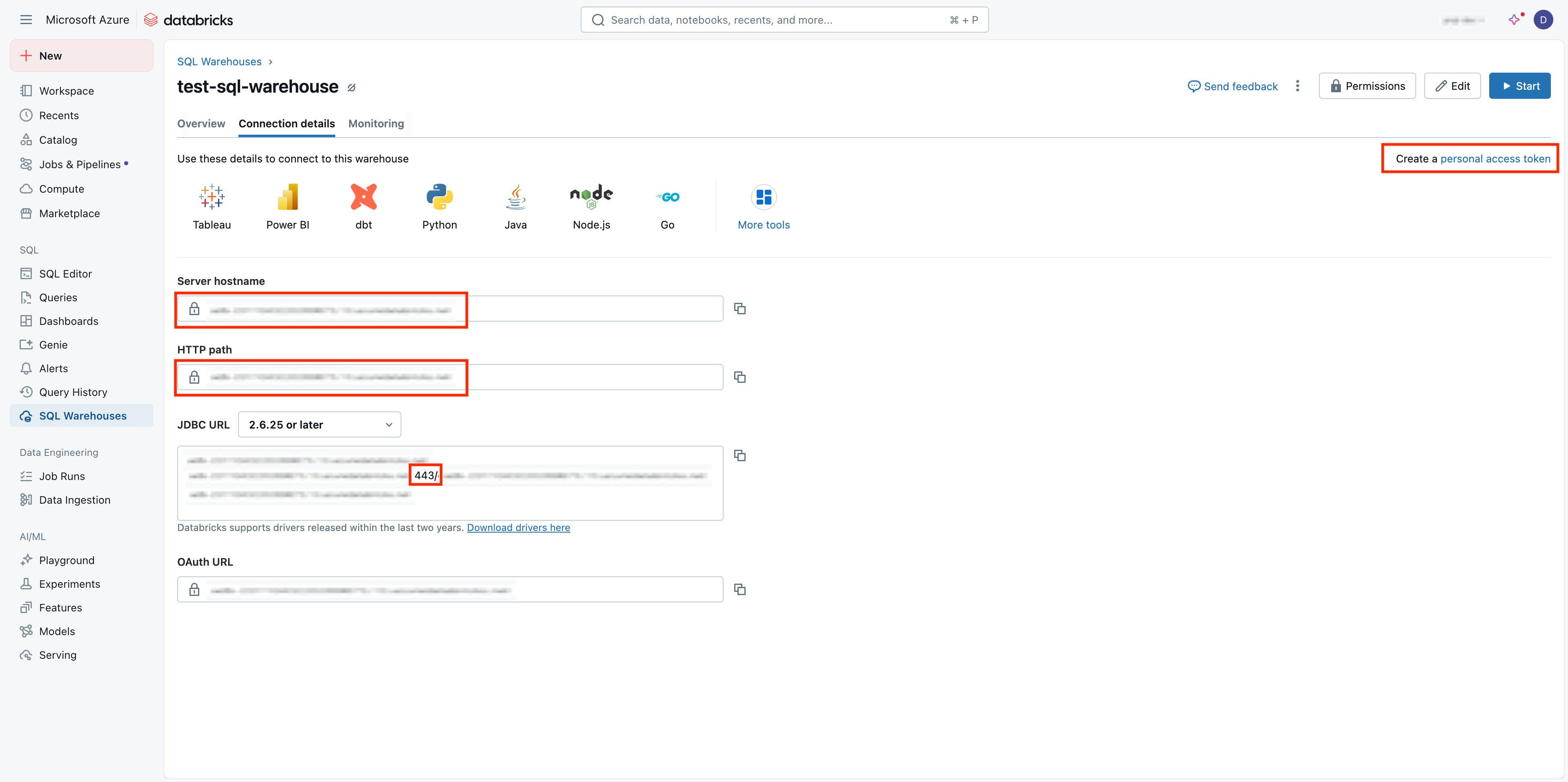
> Use this file to discover all available pages before exploring further.
# Databricks
> Instructions for connecting your Databricks workspace as a source.
## Prerequisites
* An existing SQL Warehouse in your Databricks workspace that you want to connect to Prequel. You'll need to access its **Connection details** to get the **Server hostname**, **Port**, and **HTTP Path**. ([Databricks Documentation](https://docs.databricks.com/en/compute/sql-warehouse/create.html), [Microsoft Learn](https://learn.microsoft.com/en-us/azure/databricks/sql/admin/sql-endpoints))
* Permissions to create a Personal Access Token (PAT) in your Databricks workspace. You can use a user PAT or a service-principal PAT. **Step #2** below describes how to generate a user PAT. For a service-principal PAT, see our guide on [Create and rotate a service principal PAT (Azure Databricks)](/export/sources/additional-options/databricks-service-principal-pat)
* **For Hive Metastore users**: An S3 staging bucket with proper IAM credentials that your SQL warehouse can write to and that Prequel can access for temporary data staging during transfer. See **Step #3B** below for detailed setup instructions.
* **Optional networking**: If your organization restricts inbound traffic, ensure HTTPS 443 access to your workspace hostname is allowed for Prequel's connector. ([Databricks Documentation](https://docs.databricks.com/en/security/network/ip-access-list.html))
1. In your Databricks workspace, go to **SQL** → **SQL Warehouses** and select the warehouse you want to connect to Prequel.
2. Click **Connection details** and copy the **Server hostname**, **Port** (typically 443), and **HTTP Path**. ([Databricks Documentation](https://docs.databricks.com/en/compute/sql-warehouse/create.html), [Microsoft Learn](https://learn.microsoft.com/en-us/azure/databricks/sql/admin/sql-endpoints)). Note that the port is contained within the **JDBC url** populated.
1. Create or use an existing Databricks service principal in your workspace and generate a PAT for the service principal. See our comprehensive [Create and rotate a service principal PAT](/export/sources/additional-options/databricks-service-principal-pat) guide. ([Microsoft Learn](https://learn.microsoft.com/en-us/azure/databricks/administration-guide/users-groups/service-principals))
1. Then, on the same screen, select **Create a Personal Access Token**. ([Databricks Documentation](https://docs.databricks.com/en/dev-tools/auth/pat.html))
Your Databricks workspace uses one of two metastore types. Follow the corresponding steps based on your metastore:
### A. Unity Catalog (recommended)
If your data is in Unity Catalog:
* No external staging bucket required. Prequel will create temporary Unity Catalog volumes for data staging and clean them up automatically. ([Databricks Documentation](https://docs.databricks.com/en/data-governance/unity-catalog/index.html), [Microsoft Learn](https://learn.microsoft.com/en-us/azure/databricks/data-governance/unity-catalog/))
* You'll need to specify which catalog and optionally which schema contains your data.
### B. Hive Metastore
If your data is in the Hive Metastore:
* You'll need to provide an S3 staging bucket that your SQL warehouse can write to and that Prequel can access for temporary data staging during transfer.
* You'll also need AWS access credentials (Access Key ID and Secret Access Key) that have permissions to read/write to this staging bucket.
#### Setup S3 staging bucket for Hive Metastore
Follow these steps to create and configure the required S3 staging bucket:
1. **Create the staging bucket**:
* Navigate to the **S3** service page in AWS console
* Click **Create bucket**
* Enter a **Bucket name** and select an **AWS Region** (select the same region as your Databricks workspace)
* Set **Object Ownership** to "**ACLs disabled**" and **Block Public Access settings** to "**Block all public access**" as recommended by AWS. Leave the default encryption method of **SSE-S3** selected.
* Click **Create bucket**
2. **Create IAM policy for bucket access**:
* Navigate to the **IAM** service page, click **Policies**, and click **Create policy**
* Click the **JSON** tab and paste the following policy, replacing `BUCKET_NAME` with your staging bucket name:
```json title="Bucket access policy" icon="brackets-curly" expandable theme={null}
{
"Version": "2012-10-17",
"Statement": [
{
"Effect": "Allow",
"Action": "s3:ListBucket",
"Resource": "arn:aws:s3:::BUCKET_NAME"
},
{
"Effect": "Allow",
"Action": [
"s3:PutObject",
"s3:GetObject",
"s3:DeleteObject"
],
"Resource": "arn:aws:s3:::BUCKET_NAME/*"
}
]
}
```
**KMS encryption (optional)**
If your S3 staging bucket uses KMS encryption (CMK), add the following statement to the `Statement` array of your IAM policy to allow data encryption/decryption with your KMS key. Encryption with SSE-C is not currently supported.
```json title="KMS statement" icon="brackets-curly" expandable theme={null}
{
"Effect": "Allow",
"Action": [
"kms:GenerateDataKey",
"kms:Decrypt"
],
"Resource": "arn:aws:kms:REGION_NAME:ACCOUNT_ID:key/KEY_ID"
}
```
Replace `REGION_NAME`, `ACCOUNT_ID`, and `KEY_ID` with your values.
3. **Create IAM user and access keys**:
* Navigate to **IAM** → **Users** and click **Create user**
* Enter a **User name** (e.g., `databricks-prequel-staging`)
* Click **Next**, attach the policy created above, and click **Create user**
* Click on the created user, go to **Security credentials** tab
* Click **Create access key**, choose **Application running outside AWS**, and create the key
* **Important**: Save the **Access Key ID** and **Secret Access Key** - you'll need these for Prequel configuration
In Prequel, create a new Databricks source with the following configuration:
* **Name**: Descriptive name for your Databricks source
* **Vendor**: `databricks`
* **Server hostname**: From Step 1
* **Port**: `443` (from Step 1)
* **HTTP Path**: From Step 1
* **Authentication**: Personal Access Token (from Step 2)
* **Metastore**: Select `unity_catalog` or `hive` based on your setup
### For Unity Catalog workspaces
* **Catalog**: Name of the catalog containing your data
* **Schema** (optional): Default schema to use
### For Hive Metastore workspaces
* **Database**: Name of the database containing your data
* **S3 staging bucket**:
* **Bucket name**: Name of the S3 staging bucket created above
* **Bucket region**: AWS region of the staging bucket
* **Access Key ID**: AWS access key ID with permissions to the staging bucket
* **Secret Access Key**: AWS secret access key corresponding to the access key ID
1. In Prequel, click **Test connection** to verify the setup.
2. If your SQL warehouse is currently stopped, it will restart automatically when Prequel runs a test query. Ensure your PAT has permission to use the specified warehouse. ([Databricks Documentation](https://docs.databricks.com/en/compute/sql-warehouse/create.html), [Microsoft Learn](https://learn.microsoft.com/en-us/azure/databricks/sql/admin/sql-endpoints))
## Notes and known behaviors
* If your tables are in the Hive Metastore, make sure to select "hive" as the metastore type, as `information_schema` does not list `hive_metastore` objects. ([Databricks Documentation](https://docs.databricks.com/en/sql/language-manual/sql-ref-information-schema.html))
* Unity Catalog volumes used for staging are temporary and automatically cleaned up after each transfer. ([Databricks Documentation](https://docs.databricks.com/en/sql/language-manual/sql-ref-syntax-ddl-create-volume.html))
## Related guides
Generate and rotate a personal access token for an Azure Databricks service principal.