> ## Documentation Index
> Fetch the complete documentation index at: https://docs.prequel.co/llms.txt
> Use this file to discover all available pages before exploring further.
# Create and rotate a service principal PAT (Azure Databricks)
> Create and rotate a Databricks Personal Access Token for a service principal on Azure Databricks.
Use this guide to create a Databricks Personal Access Token (PAT) for a service principal on Azure Databricks, and rotate it safely for use with Databricks connections.
**Service Principal Types**
Azure Databricks supports two types of service principals:
* **Azure Databricks managed service principals**: Created and managed directly within Databricks. Can create PATs through the Databricks UI.
* **Microsoft Entra ID managed service principals**: Created in Microsoft Entra ID, then imported into Databricks. Accessed via Azure API.
This guide covers creating PATs for both **Microsoft Entra ID managed service principals** (indicated with Steps A) and **Databricks managed service principals** (with Steps B).
## Prerequisites
* You have Azure admin access to create app registrations in Microsoft Entra ID.
* You have Azure Databricks workspace admin access to manage service principals and token permissions.
* You know your workspace URL (for example, `https://adb-..azuredatabricks.net`).
## Step 0: choose your service principal type
### Option A: Microsoft Entra ID managed service principal (for cross-Azure authentication)
If you need to authenticate with both Azure Databricks and other Azure resources, create a Microsoft Entra ID service principal. If you already have one with the **Application (client) ID**, **Directory (tenant) ID**, and **client secret**, you can [skip to Step 2A](#step-2a-add-entra-id-service-principal-to-databricks).
## Step 1A: create the app registration in Microsoft Entra ID
1. Sign in to the **Azure portal**.
2. Navigate to **Microsoft Entra ID** → **App registrations** → **New registration**.
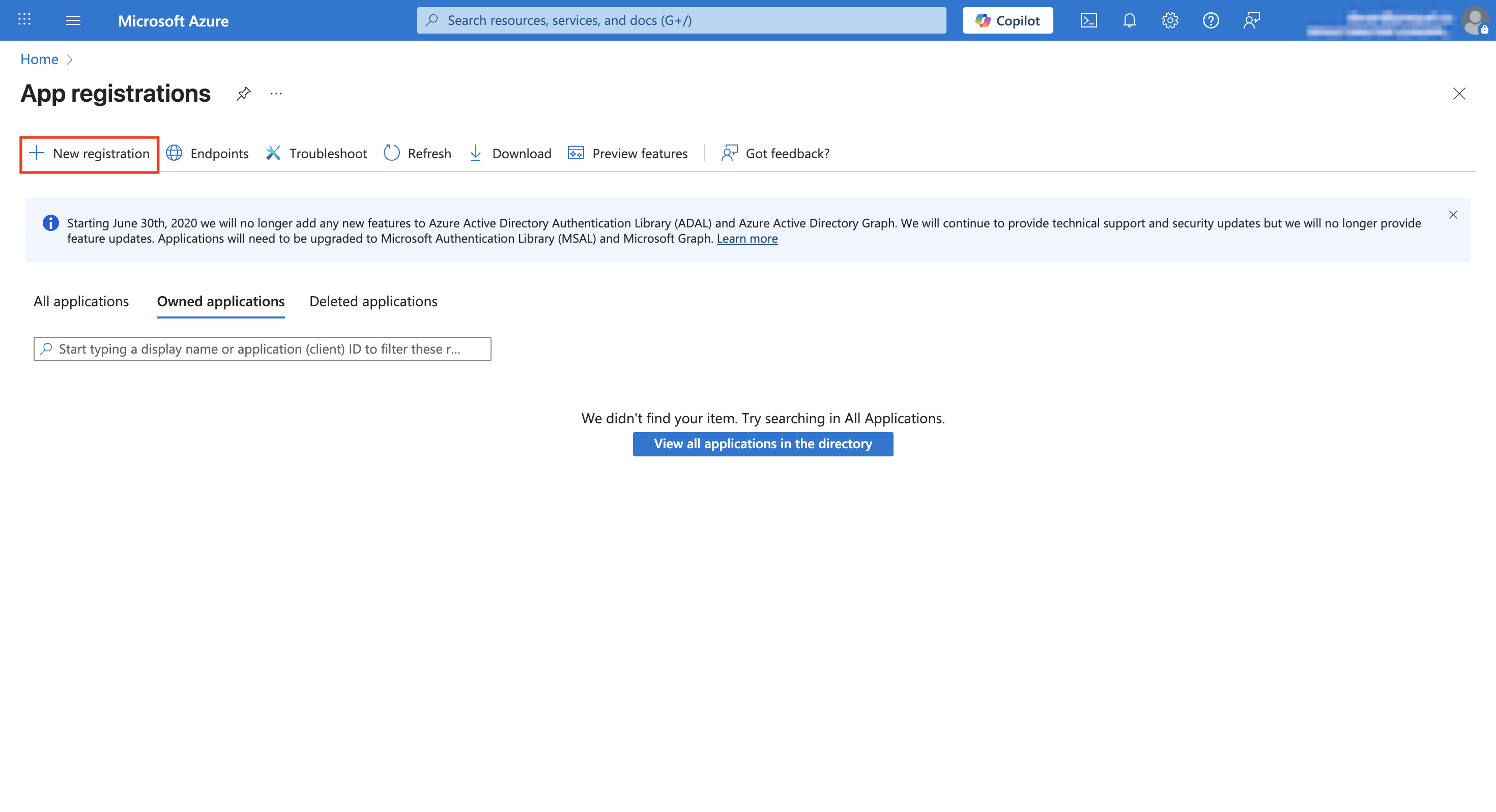
3. Enter a **Name** (e.g., "Databricks Service Principal").
4. Under **Supported account types**, select **Accounts in this organizational directory only (Single tenant)**.
5. Click **Register**.
6. On the **Overview** page, copy and save:
* **Application (client) ID**
* **Directory (tenant) ID**
#### Create a client secret
1. In the app registration, go to **Certificates & secrets** → **Client secrets** → **New client secret**.
2. Enter a **Description** and select an **Expires** duration (e.g., 12 months).
3. Click **Add**.
4. **Important**: Copy and securely store the **Value**. This is your client secret and will not be shown again.
## Step 2A: add Entra ID service principal to Databricks
### Import the service principal
1. In your Databricks workspace, click your username → **Settings**.
2. Go to **Identity and access** → **Service principals** → **Add service principal**.
3. Select **Import service principal**.
4. Paste the **Application (client) ID** from Step 1.
5. Click **Add**.
### Grant workspace entitlements
1. Click on the newly created service principal.
2. Under **Entitlements**, enable:
* **Workspace access**
* **Databricks SQL access** (if needed for SQL Warehouse access)
3. Click **Update**.
Now continue to [Step 3A](#step-3a-configure-token-permissions-for-entra-id-sp).
## Step 3A: configure token permissions for Entra ID SP
### Enable PAT usage for the service principal
1. Configure token permissions via API using an existing admin PAT:
```bash title="Configure token permissions" icon="terminal" expandable theme={null}
curl --request PATCH 'https://adb-..azuredatabricks.net/api/2.0/preview/permissions/authorization/tokens' \
--header 'Authorization: Bearer ' \
--header 'Content-Type: application/json' \
--data-raw '{
"access_control_list": [
{
"service_principal_name": "",
"permission_level": "CAN_USE"
}
]
}'
```
Replace `` with your service principal's Application (client) ID from Step 1.
**Note: PAT workspace setting**
If PAT authentication is disabled at the workspace level, users and service principals cannot create or use PATs until re-enabled. ([Microsoft Learn](https://learn.microsoft.com/en-us/azure/databricks/administration-guide/access-control/tokens))
Continue to [Step 4A](#step-4a-generate-microsoft-entra-id-access-token).
## Step 4A: generate Microsoft Entra ID access token
Use the service principal credentials to request an Entra ID token:
```bash title="Generate Entra ID token" icon="terminal" expandable theme={null}
# Replace values in <>. Token expires in ~1 hour.
curl -X POST "https://login.microsoftonline.com//oauth2/v2.0/token" \
-H 'Content-Type: application/x-www-form-urlencoded' \
-d 'client_id=' \
-d 'client_secret=' \
-d 'grant_type=client_credentials' \
-d 'scope=2ff814a6-3304-4ab8-85cb-cd0e6f879c1d%2F.default'
```
Replace:
* `` with the **Directory (tenant) ID** from Step 1
* `` with the **Application (client) ID** from Step 1
* `` with the client secret **Value** from Step 1
The `2ff814a6-3304-4ab8-85cb-cd0e6f879c1d/.default` scope identifies Azure Databricks and is not workspace-specific. Do not change it. ([Microsoft Learn](https://learn.microsoft.com/en-us/azure/databricks/dev-tools/auth/service-prin-aad-token))
**Token lifetime**
Entra tokens are short-lived (\~1 hour). Use immediately to create the PAT, or automate with CLI/SDK tools. ([Microsoft Learn](https://learn.microsoft.com/en-us/azure/databricks/dev-tools/auth/service-prin-aad-token))
Continue to [Step 5A](#step-5a-create-pat-for-entra-id-sp-via-api).
## Step 5A: create PAT for Entra ID SP via API
**Microsoft Entra ID service principals can only create PATs through API calls, not through the Databricks UI.** This is because they are API-only identities that cannot log into the workspace interface. ([Microsoft Learn](https://learn.microsoft.com/en-us/azure/databricks/dev-tools/auth/pat))
Call the Databricks Tokens API using the workspace URL and Entra access token from Step 4:
```bash title="Create PAT" icon="terminal" expandable theme={null}
# Create a PAT for the service principal identity
curl -X POST "https://adb-..azuredatabricks.net/api/2.0/token/create" \
-H "Authorization: Bearer " \
-H "Content-Type: application/json" \
-d '{
"lifetime_seconds": 31536000,
"comment": "Databricks data pipeline (service principal)"
}'
```
The response includes a `token_value` that starts with `dapi...`. Copy and store it securely; you will not see it again. ([Databricks Documentation](https://docs.databricks.com/en/dev-tools/api/latest/tokens.html))
**Alternative: Databricks CLI approach**
You can also create the PAT with the Databricks CLI (`databricks tokens create`) after authenticating the service principal via OAuth M2M or Entra SP auth. ([Microsoft Learn](https://learn.microsoft.com/en-us/azure/databricks/dev-tools/cli/authentication))
### Option B: Databricks managed service principal (Databricks-only)
If you only need Databricks access, you can create a Databricks managed service principal directly in the UI. [Skip to Step 2B](#step-2b-create-databricks-managed-service-principal) for this flow.
## Step 2B: create Databricks managed service principal
1. In your Databricks workspace, click your username → **Settings**.
2. Go to **Identity and access** → **Service principals** → **Manage**.
3. Click **Add service principal** → **Add new**.
4. Enter a **Display name** and click **Add**.
5. Click on the newly created service principal and under **Entitlements**, enable:
* **Workspace access**
* **Databricks SQL access** (if needed for SQL Warehouse access)
6. Click **Update** and make a note of the **Application ID**.
Continue to [Step 3B](#step-3b-configure-token-permissions-for-databricks-sp).
## Step 3B: configure token permissions for Databricks SP
1. In **Admin Settings** → **Access control** → **Personal access tokens** → **Permission settings**.
2. Search for and select your Databricks service principal.
3. Grant **CAN USE** permission.
4. Click **Add** and **Save**.
Continue to [Step 4B](#step-4b-create-pat-for-databricks-sp-via-api).
## Step 4B: create PAT for Databricks SP via API
**For Databricks managed service principals, you can create a PAT using the on-behalf-of tokens API with an admin user PAT.**
You'll need an existing admin Personal Access Token to create a token on behalf of the service principal:
```bash title="Create PAT on behalf of SP" icon="terminal" expandable theme={null}
curl --request POST "https:///api/2.0/token-management/on-behalf-of/tokens" \
--header "Authorization: Bearer " \
--header "Content-Type: application/json" \
--data '{
"application_id": "",
"lifetime_seconds": 31536000,
"comment": "Databricks data pipeline (service principal)"
}'
```
Replace:
* `` with your workspace URL
* `` with a workspace admin's PAT
* `` with the Application ID from Step 2B
**Alternative: UI approach**
Some Databricks managed service principals may also create PATs through **Admin Settings** → **Identity and access** → **Service principals** → click service principal → **Access tokens** → **Generate new token**, depending on workspace configuration.
Continue to [Step 6](#step-6-use-the-pat-in-your-integration).
## Step 6: use the PAT in your integration
Use this token value in your Databricks connection configuration (Personal access token).
## Rotation procedure
1. Create a new PAT for the service principal (repeat Steps 4-5).
2. Update your integration's Databricks configuration with the new PAT.
3. Revoke the old PAT using the UI or API:
```bash title="Revoke PAT" icon="terminal" theme={null}
# Using CLI: delete by token ID
databricks tokens delete
```
(Or use the Token Management API to delete a token by ID.) ([Microsoft Learn](https://learn.microsoft.com/en-us/azure/databricks/administration-guide/access-control/tokens), [Databricks Documentation](https://docs.databricks.com/en/dev-tools/api/latest/token-management.html))
## Troubleshooting
### 403 / not authorized when creating PAT
PATs may be disabled for the workspace, or the service principal/group lacks **CAN USE** permission. Check **Admin Settings** → **Access control** → **Personal access tokens**. ([Microsoft Learn](https://learn.microsoft.com/en-us/azure/databricks/administration-guide/access-control/tokens))
### Invalid scope when requesting Entra token
Use the exact scope `2ff814a6-3304-4ab8-85cb-cd0e6f879c1d/.default`. ([Microsoft Learn](https://learn.microsoft.com/en-us/azure/databricks/dev-tools/auth/service-prin-aad-token))
### Account-level APIs failing with PAT
PATs are for workspace-level auth. Account-level automation requires Entra/OAuth tokens. ([Microsoft Learn](https://learn.microsoft.com/en-us/azure/databricks/administration-guide/access-control/tokens))