> ## Documentation Index
> Fetch the complete documentation index at: https://docs.prequel.co/llms.txt
> Use this file to discover all available pages before exploring further.
# Google Cloud Storage
> Configuring your Google Cloud Storage destination.
## Prerequisites
* By default, GCS authentication uses role-based access. You will need our service account name available to grant access. It should look like `some-name@some-project.iam.gserviceaccount.com`.
1. In the GCP console, navigate to the **IAM & Admin** menu, click into the **Service Accounts** tab, and click **Create service account** at the top of the menu.
2. In the first step, name the service account that will be used to transfer data into Cloud Storage and click **Create and Continue**. Click **Continue** in the following optional step without assigning any roles.
3. In the **Grant users access to this service account** step, within the **Service account users role** field, enter the provided **Service account** (see prerequisite) and click **Done**.
4. Once successfully created, search for the created service account in the service accounts list, click the **Service account** name to view the details, and make a note of the **email** (note: this is a different email than the service's service account).
5. Grant access using one of the following authentication methods:
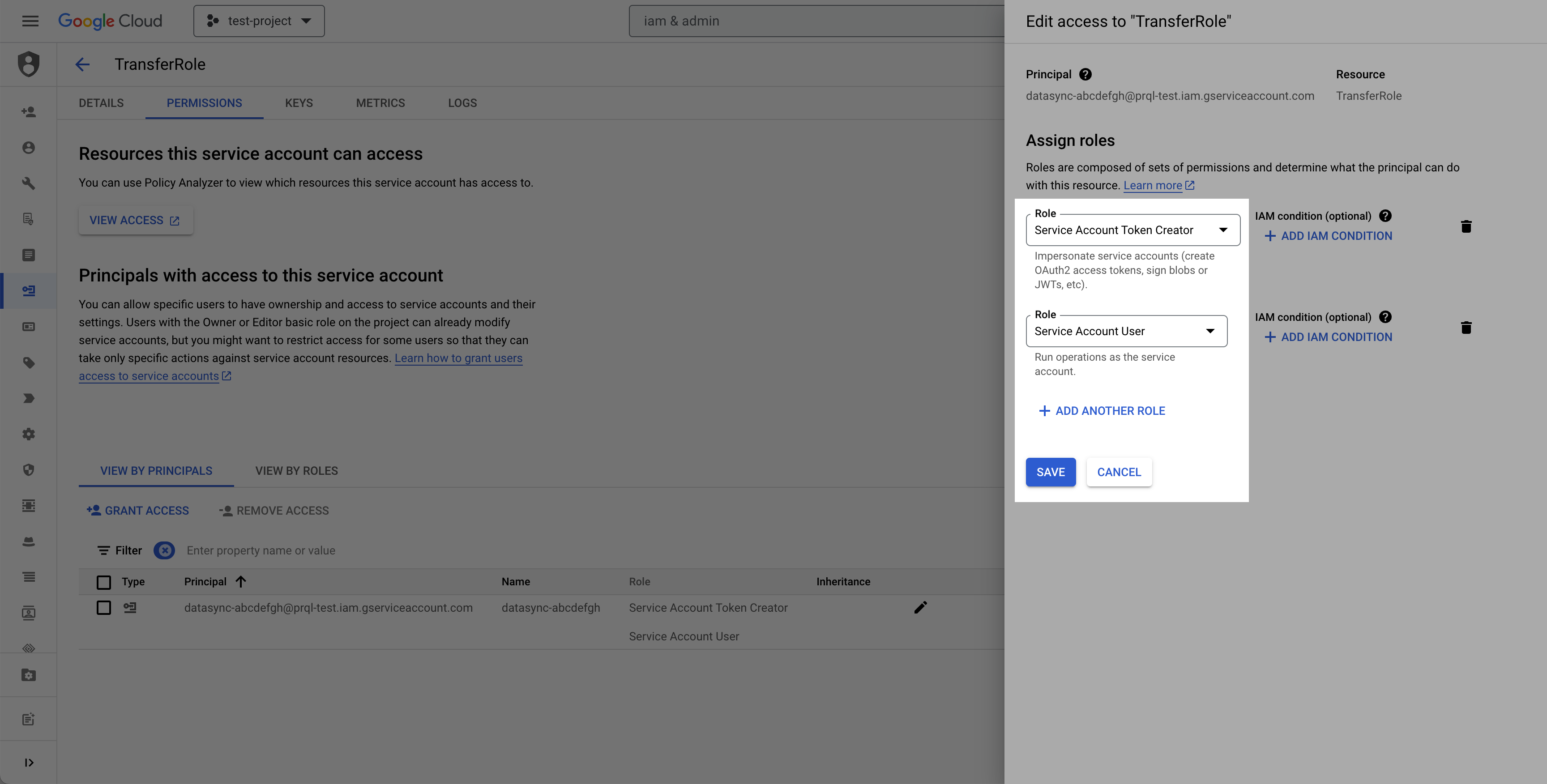
Select the permissions tab, find the provided principal name (**Service account** from the prerequisite), click the **Edit principal** button (pencil icon), click **Add another role**, select the **Service Account Token Creator** role, and click **Save**.
Role based authentication is the preferred authentication mode for Google Cloud Storage based on GCP recommendations, however, HMAC Access Key ID & Secret Access Key is an alternative authentication method that can be used if preferred. An HMAC key is a type of credential and can be associated with a service account or a user account to access Google Cloud Storage.
1. Navigate to the **Cloud Storage** page.
2. Click into the **Settings** tab on the left side menu.

3. Navigate to the **Interoperability** tab and click the **Create a key for a Service Account** button.
4. Select the **Service Account** created in **Step 1**, and click **Create key**.

5. Make a note of the **Access key** and **Secret**.
1. Navigate to the **Cloud Storage** page.
2. Click **Create**.
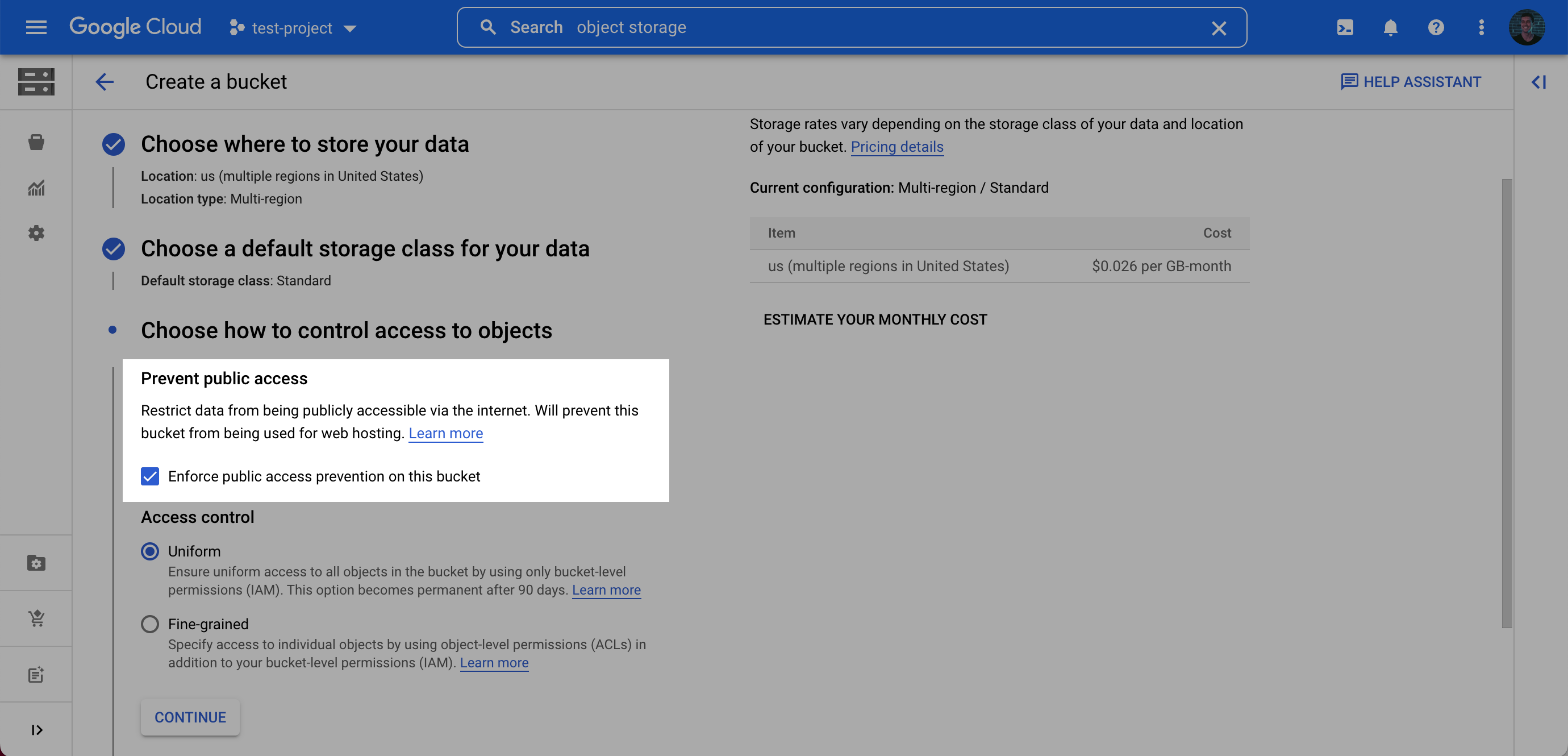
3. Enter a **bucket name**, choose a **region**. **Note**: at the **Choose how to control access to objects** step, we recommend selecting **Enforce public access prevention on this bucket**.
4. After choosing your preferences for the remaining steps, click **Create**.
**Recommendation: dedicated bucket for data transfers**
Use a unique bucket for these transfers. This:
* Prevents resource contention with other workloads
* Avoids accidental data loss from mixed lifecycle or cleanup rules
* Improves security by reducing surface area and enabling tighter, destination-scoped policies
5. On the **Bucket details** page for the bucket you created, select the **Permissions** tab, and click **Grant access**.
6. Grant access to the principal (Service Account) you created in **Step 1** (*Note: this is the service account you created, not the service account from the prerequisite*), and assign the Role: **Storage Legacy Bucket Writer**. Click **Save**.

Use the following details to complete the connection setup: **bucket name**, your chosen **folder name** for the data, and your **Service account email**.
## Permissions checklist
* Service account has write access to the bucket (e.g., Storage Legacy Bucket Writer), or an equivalent custom role including:
* `storage.buckets.get`
* `storage.objects.list`, `storage.objects.get`, `storage.objects.create`, `storage.objects.delete`
* If using service account impersonation, the token creator role is granted to the impersonating principal
## FAQ
Recommended: use a service account with role-based access (no long-lived user credentials). Optionally, HMAC keys can be used when policy requires, but short-lived tokens and least-privilege roles are preferred.
Data lands in Hive-style partitions per model: `//dt=/_.`. To write to the bucket root, enter `.` as the folder name.
`Parquet` (default/recommended), `CSV`, and `JSON`/`JSONL`.
Files are automatically split; multiple files may be written per model per transfer.
Each transfer writes a manifest file per model under `_manifests`. Files are written per model per transfer in the format: `_manifests//dt=/manifest_{transfer_id}.json`.
Object storage is append-only. The change detection process uses a lookback window to ensure no data is missed, which can create duplicates. Downstream pipelines should deduplicate on primary keys prioritizing the most recent transfer window; manifest files can help bound the set of files to read.
New files are appended to the new location. Existing data remains in the old location.
No explicit size/row limits for GCS; files are split automatically based on volume and performance heuristics.