> ## Documentation Index
> Fetch the complete documentation index at: https://docs.prequel.co/llms.txt
> Use this file to discover all available pages before exploring further.
# BigQuery
> Configuring your BigQuery destination.
## Prerequisites
* By default, BigQuery authentication uses role-based access. You will need our service account name available to grant access. It should look like `some-name@some-project.iam.gserviceaccount.com`.
## Understanding role-based authentication in BigQuery
**Two service accounts involved**
* **Destination service account (in your GCP project):** You create this service account in Step 1. It has permissions to BigQuery and Cloud Storage and is the identity that performs work inside your project.
* **Our service account:** Provided to you in the prerequisites. It does not have direct permissions to BigQuery or Cloud Storage. Instead, it is granted permission to "assume" the other service account role (using short-lived tokens via Service Account Token Creator/User), enabling least-privilege, auditable access without sharing keys.
**See the end of the configuration guide for Frequently Asked Questions with the BigQuery destination**
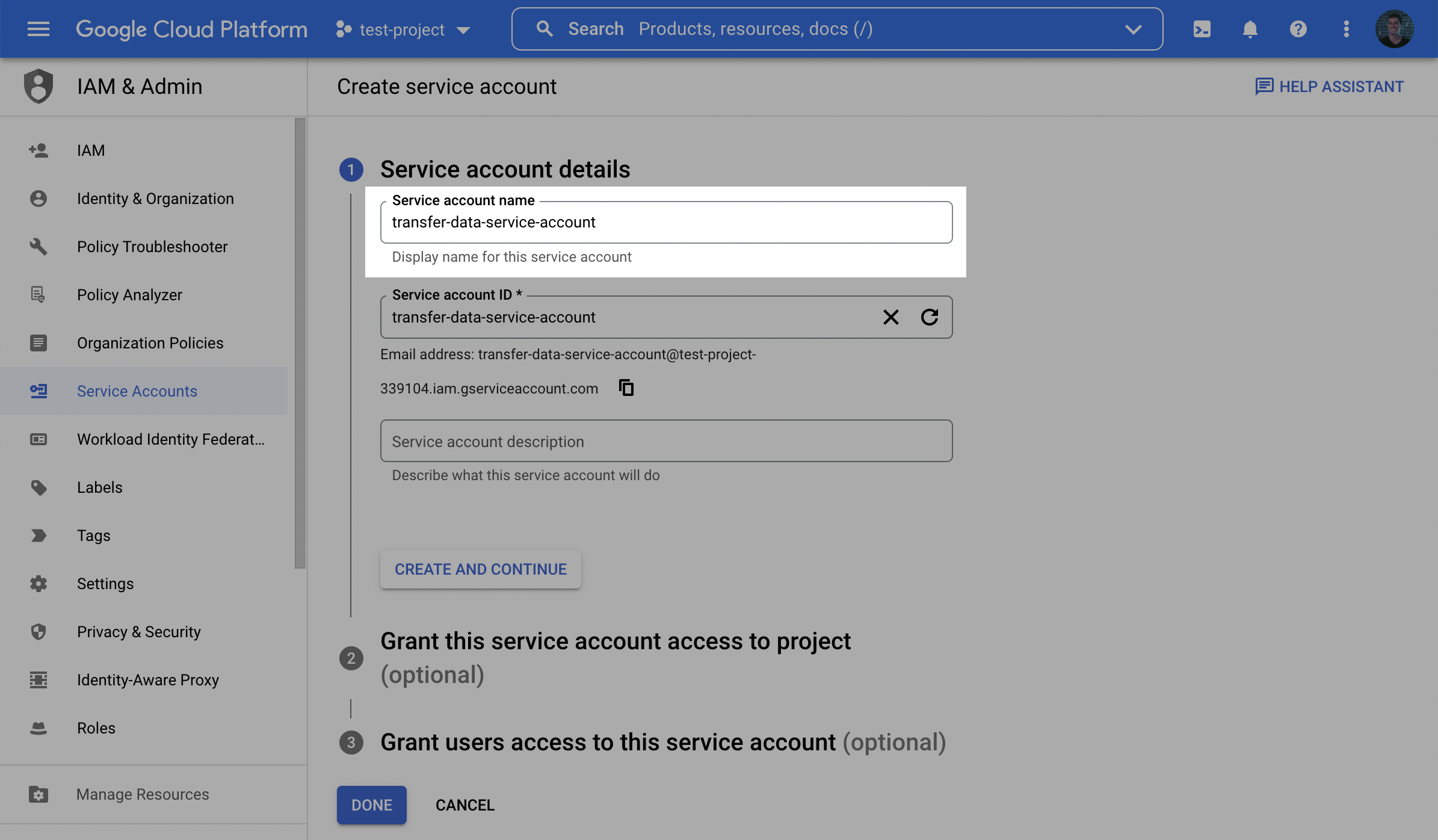
1. In the GCP console, navigate to the **IAM & Admin** menu, click into the **Service Accounts** tab, and click **Create service account** at the top of the menu.

2. In the first step, name the new **Destination service account** and click **Create and Continue**.
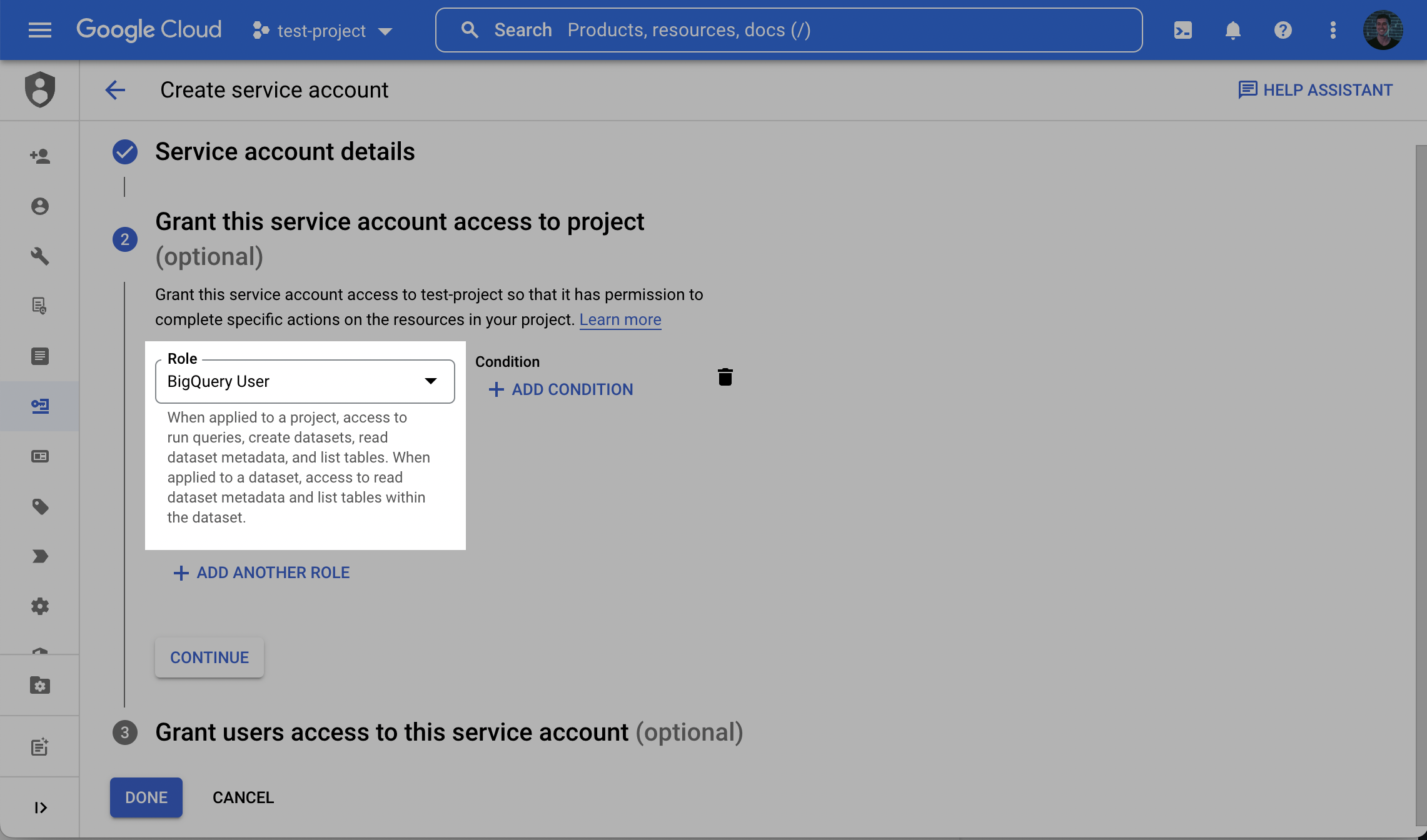
3. In the second step, grant the new **Destination service account** the **BigQuery User** role. This allows creating datasets, submitting load/query jobs, and accessing required metadata during setup.
**Alternative: Dataset Already Exists. Why:** use least-privilege when your dataset is pre-provisioned.
* Project: grant `bigquery.jobs.create` to the **Destination service account**.
* Dataset: grant **BigQuery Data Owner** OR a custom role including at minimum: `bigquery.tables.create`, `bigquery.tables.delete`, `bigquery.tables.get`, `bigquery.tables.getData`, `bigquery.tables.list`, `bigquery.tables.update`, `bigquery.tables.updateData`, `bigquery.routines.get`, `bigquery.routines.list`.
4. Click **Done** to finish creating the account.
5. In the service accounts list, click the newly created **Destination service account** to open its details and make a note of the **email** (this is different from **our service account** from the prerequisites).
6. Grant access to the **Destination service account** using one of the following authentication methods:
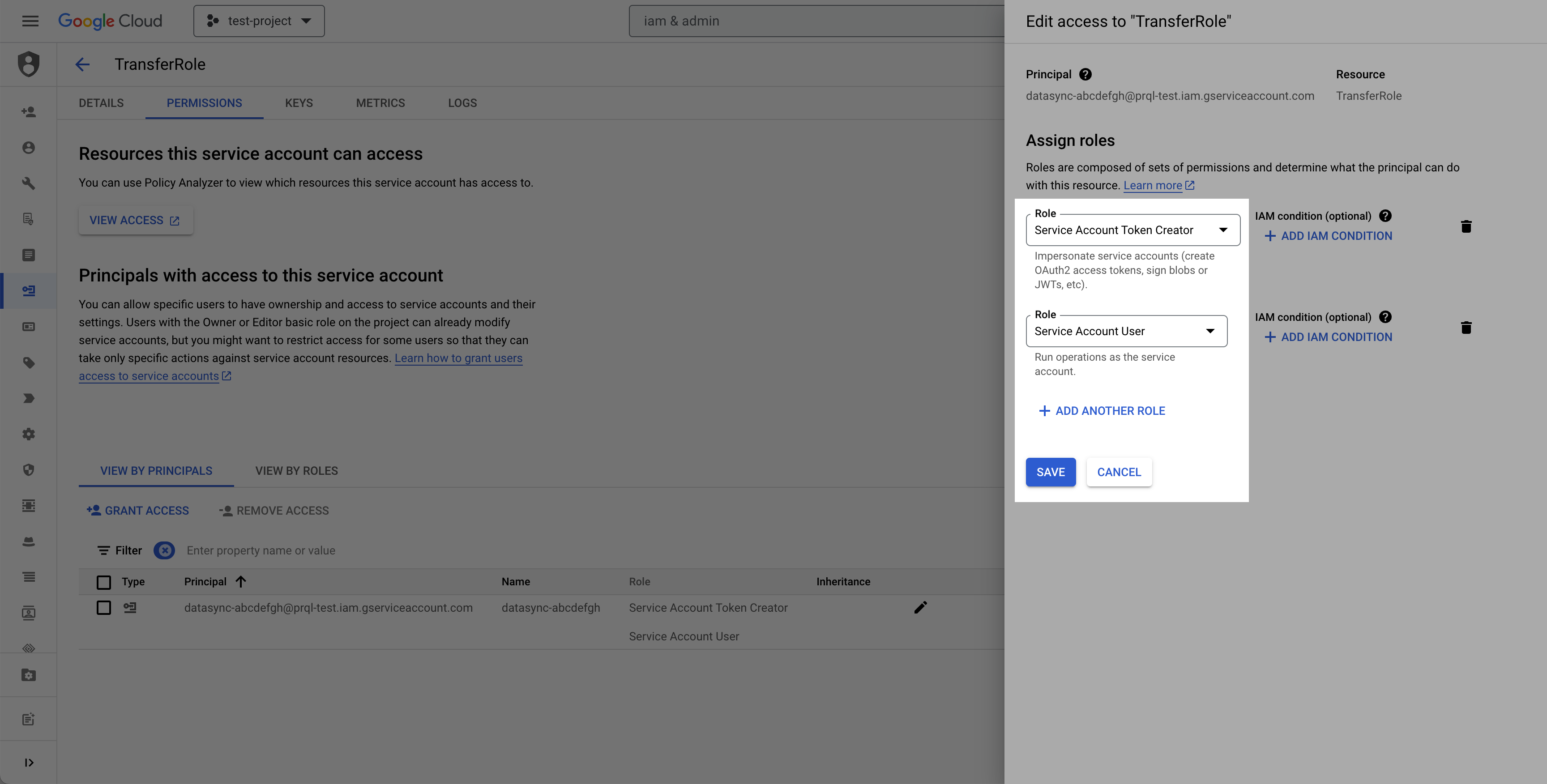
Navigate to the **Principals with access** tab, click **Grant Access**, and add the following principal and roles:
* **Principal:** the **service account we provide** (see prerequisites)
* **Roles to grant:** **Service Account Token Creator**, **Service Account User**
**Why:** only when policy requires, not recommended and presents higher security risk than impersonation.
* Generate a JSON key for the **Destination service account** and use it to authenticate.
* Steps: IAM & Admin → Service Accounts → open the **Destination service account** → Actions → Manage keys → Add key → Create new key → Key type: JSON → Create. Securely store the key.
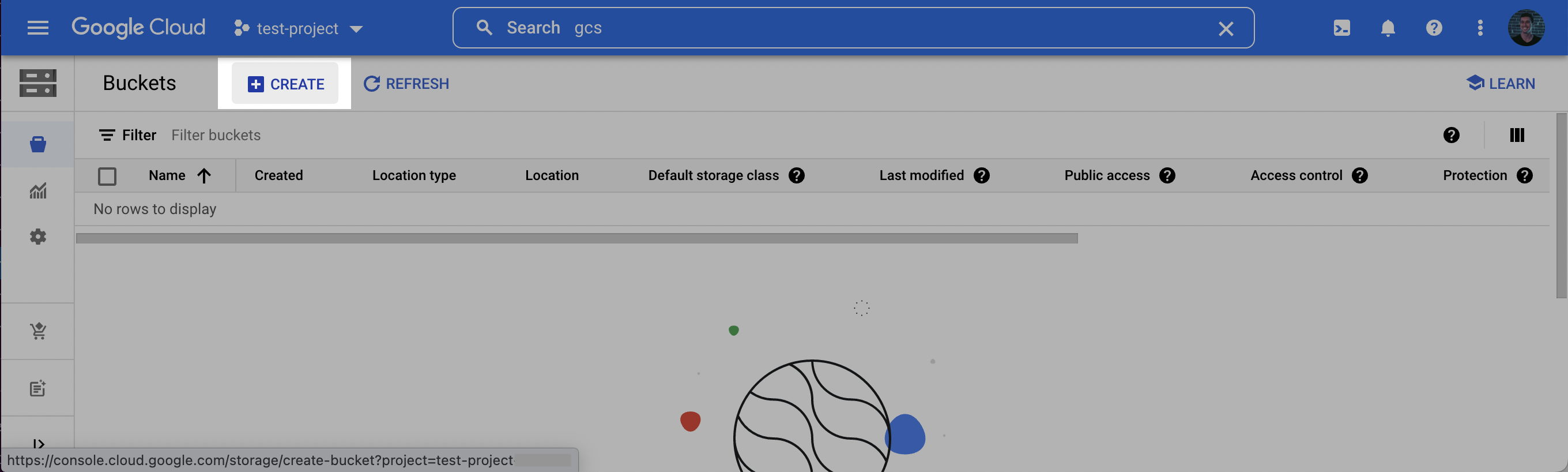
1. Log into the Google Cloud Console and navigate to **Cloud Storage**. Click **Create** to create a new bucket.
2. Choose a **name** for the bucket. Click **Continue**. Select a **location** for the staging bucket. Make a note of both the **name** and the **location** (region).
**Choosing a `location` (region)**
The location you choose for your staging bucket must match the location of your destination dataset in BigQuery. When creating your bucket, be sure to choose a region in which BigQuery is supported [(see BigQuery regions)](https://cloud.google.com/bigquery/docs/locations)
* If the dataset **does not** exist yet, the dataset will be created for you in the same region where you created your bucket.
* If the dataset **does** exist, the dataset region must match the location you choose for your bucket.
3. Click **Continue** and select the following options according to your preferences. Once the options have been filled out, click **Create**.
4. Ensure the bucket is **not public**. We recommend enabling **Uniform bucket-level access** and keeping all **Public access** blocked.
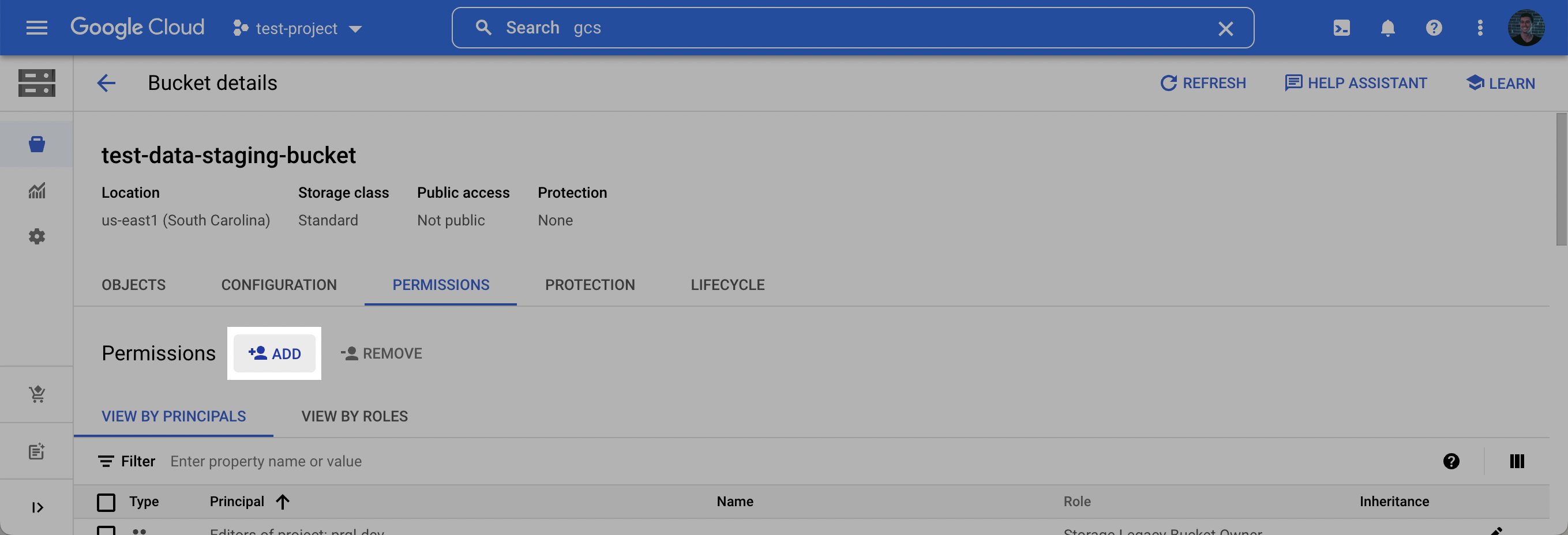
5. On the **Bucket details** page that appears, click the **Permissions** tab, and then click **Add**.
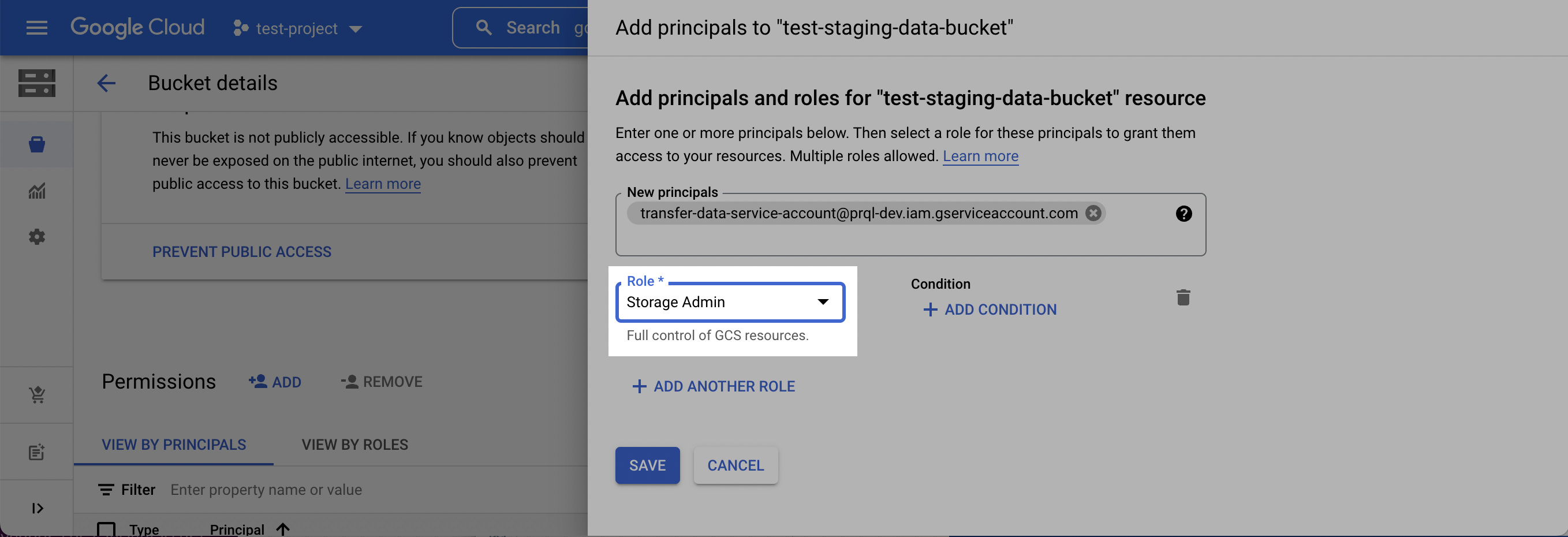
6. In the **New principals** field, add the **Destination service account** created in **Step 1**, select the **Storage Admin** role, and click **Save**.
**Alternative: Understanding GCS Bucket Scope. Why:** reduce privileges while preserving required functionality.
* We strongly recommend using a new, **dedicated bucket dedicated solely to data transfers for data isolation and to simplify permissions management**.
However, if policy requires tighter scope than Storage Admin, you can grant only the following minimum actions to the **Destination service account**: `storage.buckets.get`, `storage.objects.list`, `storage.objects.get`, `storage.objects.create`, `storage.objects.delete`.
* How: use a custom role, or provide both **Storage Legacy Bucket Reader** + **Storage Object User**.
**Optional: Add a short retention lifecycle policy**
You may configure a lifecycle rule on the staging bucket to automatically delete objects older than 2 days as the bucket is not used to persist data. In the bucket **Lifecycle** tab, add a rule with action "Delete object" and condition "Age: 2 days". Note that transfer logic automatically cleans up files after transfer completion, so this is an optional step.
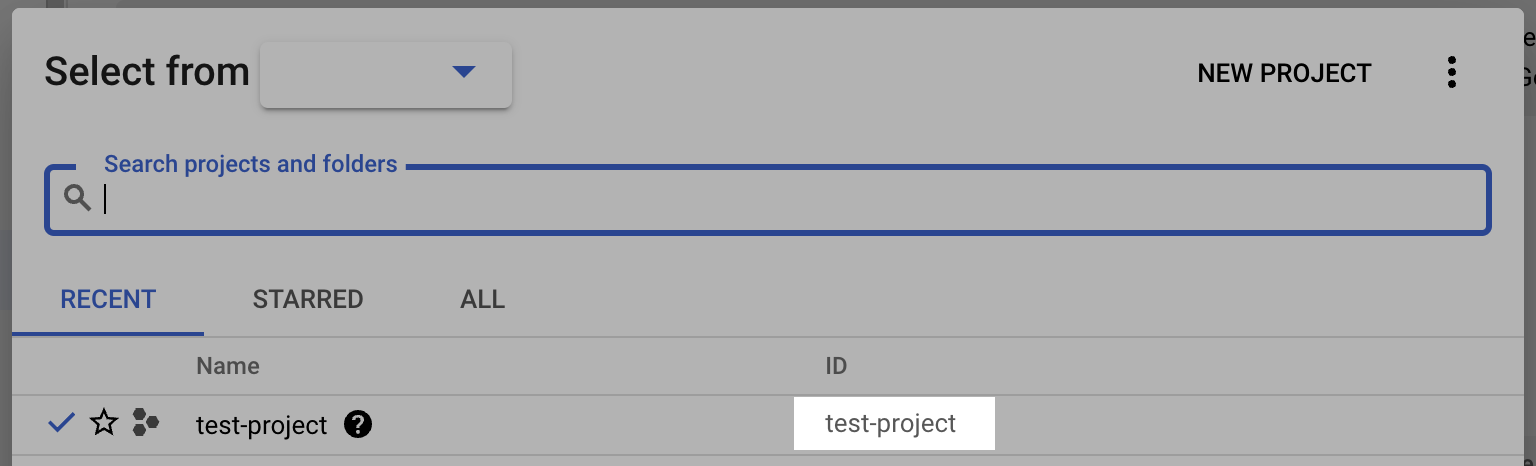
1. Log into the Google Cloud Console and select the projects list dropdown.
2. Make note of the BigQuery **Project ID**.
**Domain-restricted sharing supported**
This connection supports Google Cloud organization policies that restrict identities by domain. If your organization enforces domain-restricted sharing, you can whitelist our principal according to Google's guidance on restricting identities by domain. See the Google Cloud documentation: [Restricting identities by domain](https://cloud.google.com/resource-manager/docs/organization-policy/restricting-domains). Contact the team to receive the customer ID to add to your allow list.
Use the following details to complete the connection setup: **Project ID**, **Bucket Name**, **Bucket Location**, **Destination Dataset Name**, and **Destination service account** name.
## Permissions checklist
* Destination service account exists in your project.
* Project: Destination service account has BigQuery User. If dataset is pre-created, instead grant project `bigquery.jobs.create` + dataset-level Data Owner (or custom role with the minimum table/routine permissions listed above).
* On the Destination service account: grant our service account the Service Account Token Creator and Service Account User roles.
* Staging bucket is non-public and in the same region as the BigQuery dataset.
* Staging bucket: Destination service account has Storage Admin. If using tighter scope, ensure minimal object and bucket permissions are granted.
* Optional: lifecycle rule deletes objects after \~2 days.
## FAQ
We use staging-assisted load to use BigQuery's native bulk-upload path, maximizing throughput to your destination.
Data is not persisted in the staging bucket and is deleted after each transfer. You may optionally add a lifecycle rule to auto-delete objects after \~2 days.
Yes. BigQuery is supported across all [GCP-supported regions](https://cloud.google.com/storage/docs/locations). Ensure your BigQuery dataset and staging bucket are located in the same region.
GCP IAM services can often take up to 10 minutes to propagate. Please wait a few minutes and try again.
You create one service account in your project with BigQuery/Storage permissions, and we use our service account to impersonate yours. This means we never handle your private keys, all operations appear in your audit logs, and you can revoke access anytime through your own IAM permissions.